
How to Switch to an Apple ID from Another Region on iPhone (to Download or Update the Hotcoin App)
In some regions, the Hotcoin app may not be available for download or updates on the App Store. To resolve this, you can switch your App Store account to an Apple ID registered in another region — without signing out of your iCloud account.
⚠️ This process only switches your App Store account and will not affect your iCloud account or device data.
Below are the step-by-step instructions:
Step 1: Sign Out of Your Current App Store Account
Open the App Store on your iPhone.
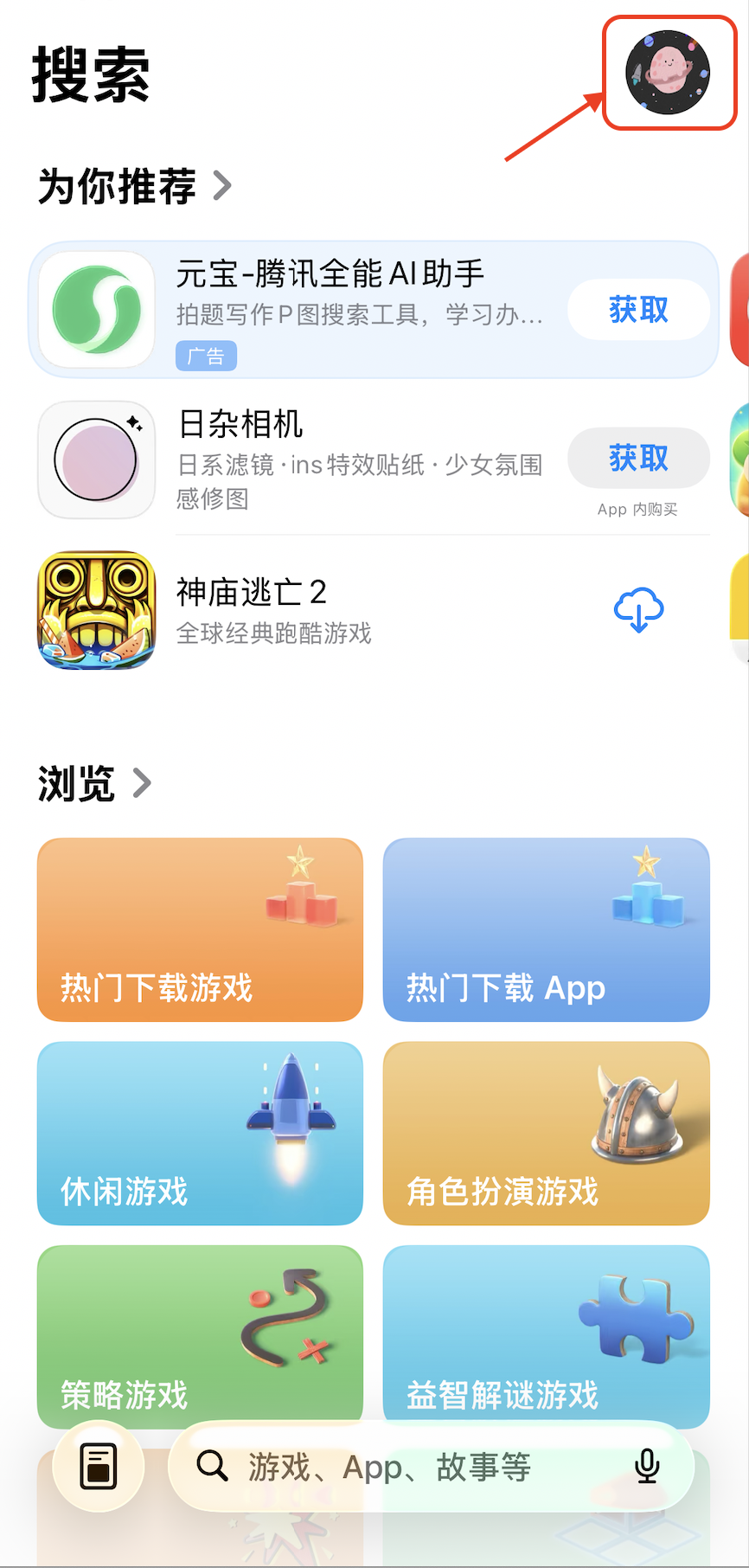
Tap your profile icon in the top-right corner, and go to the Account page.
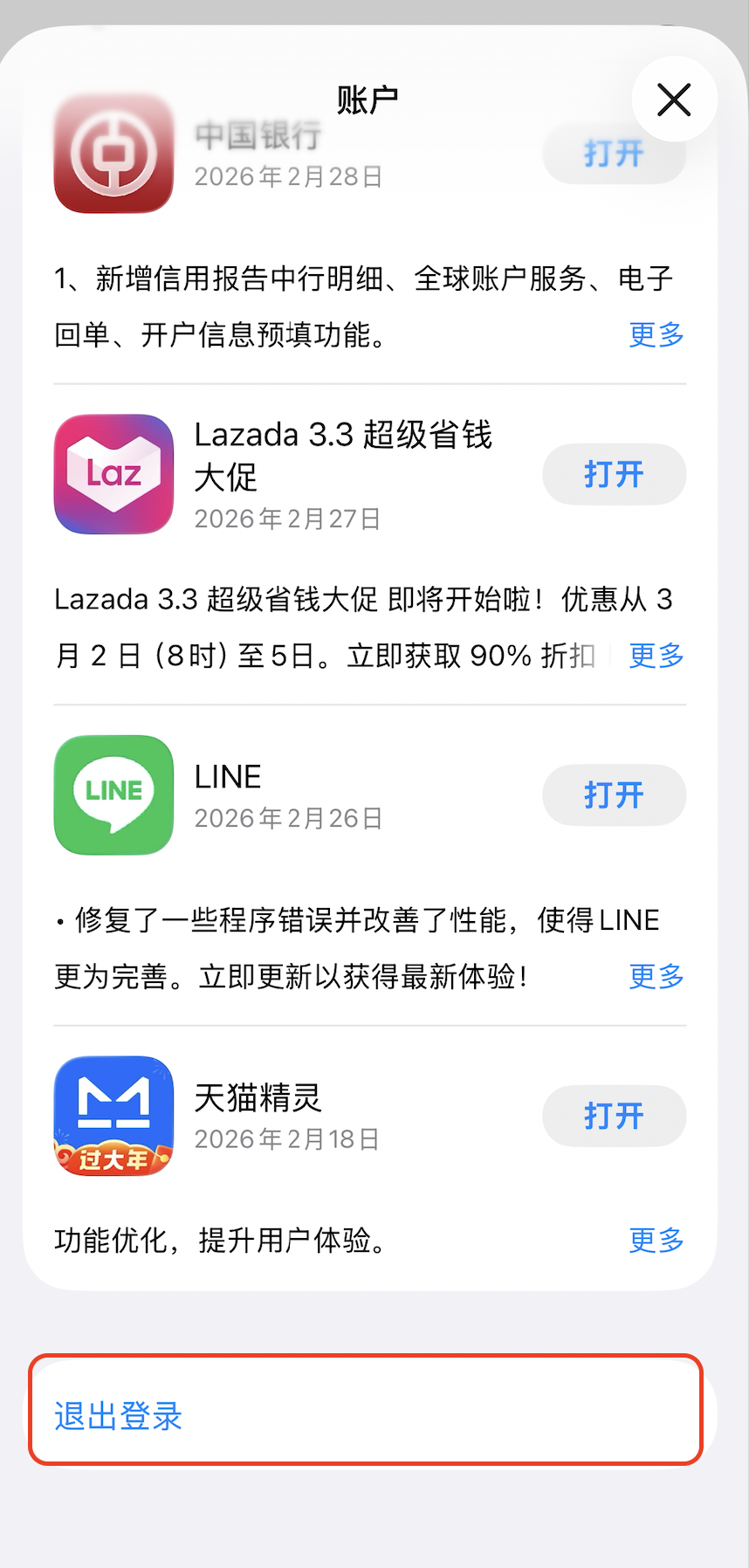
Scroll to the bottom and tap Sign Out.
Step 2: Sign In with Another Apple ID
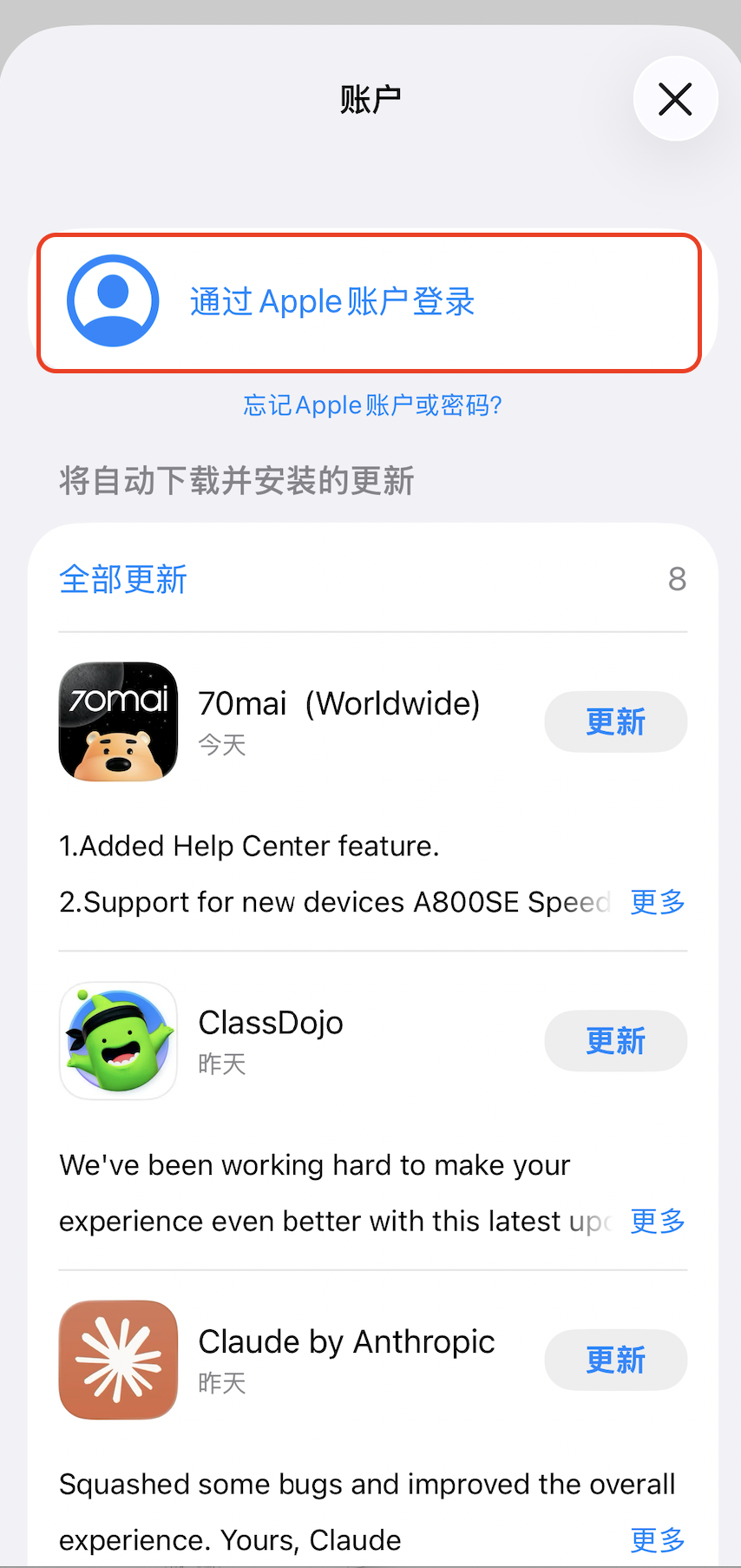
Return to the top of the page and tap Sign In, then log in with an Apple ID registered in another region (e.g., Hong Kong or the United States).
👉 If you don’t have an Apple ID from another region, you can create one through Apple’s official channels. Please ensure that you provide accurate information and comply with Apple’s policies.
Step 3: Switch to the Selected Region
After signing in, the App Store will automatically switch to the selected region.
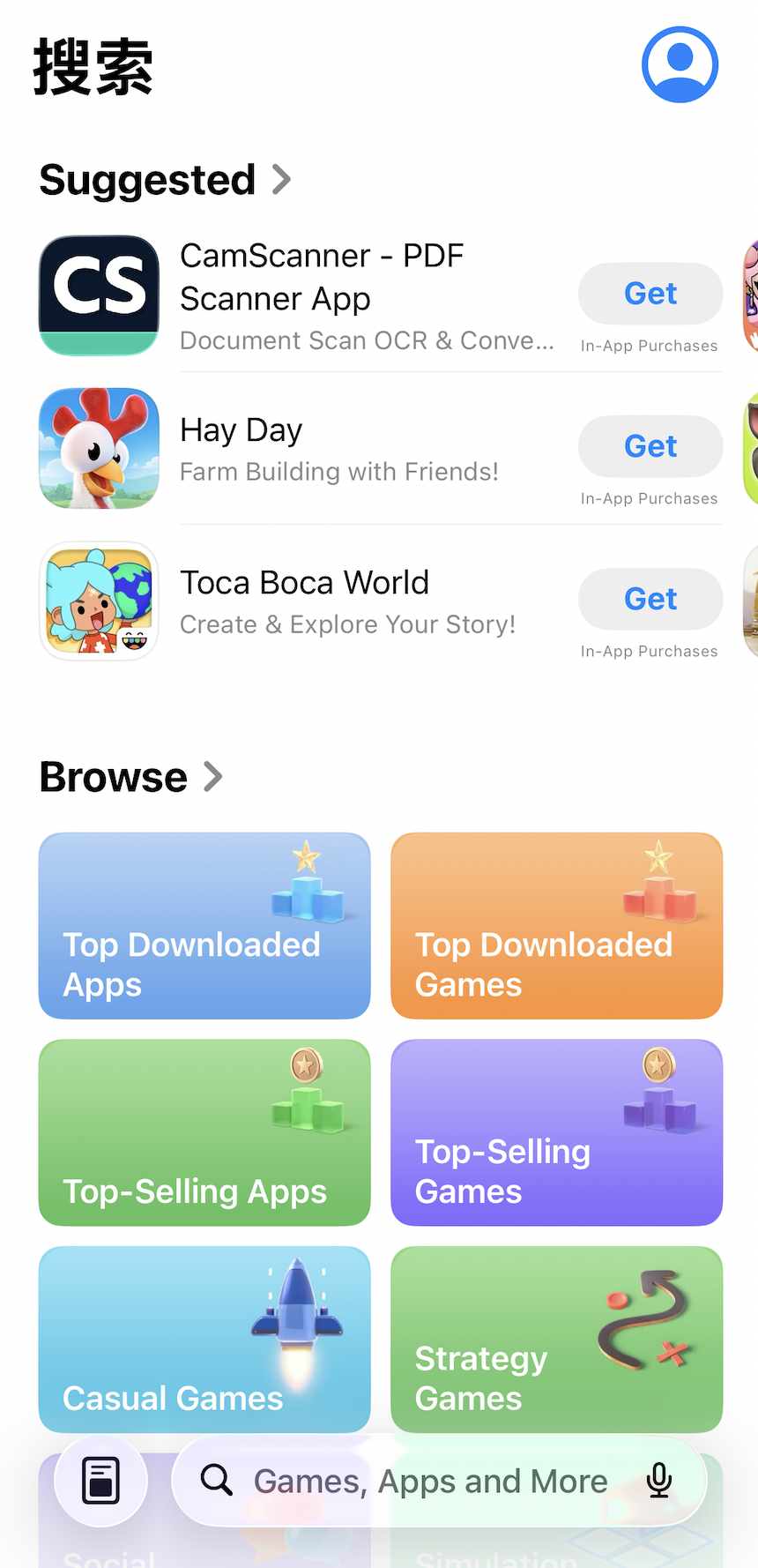
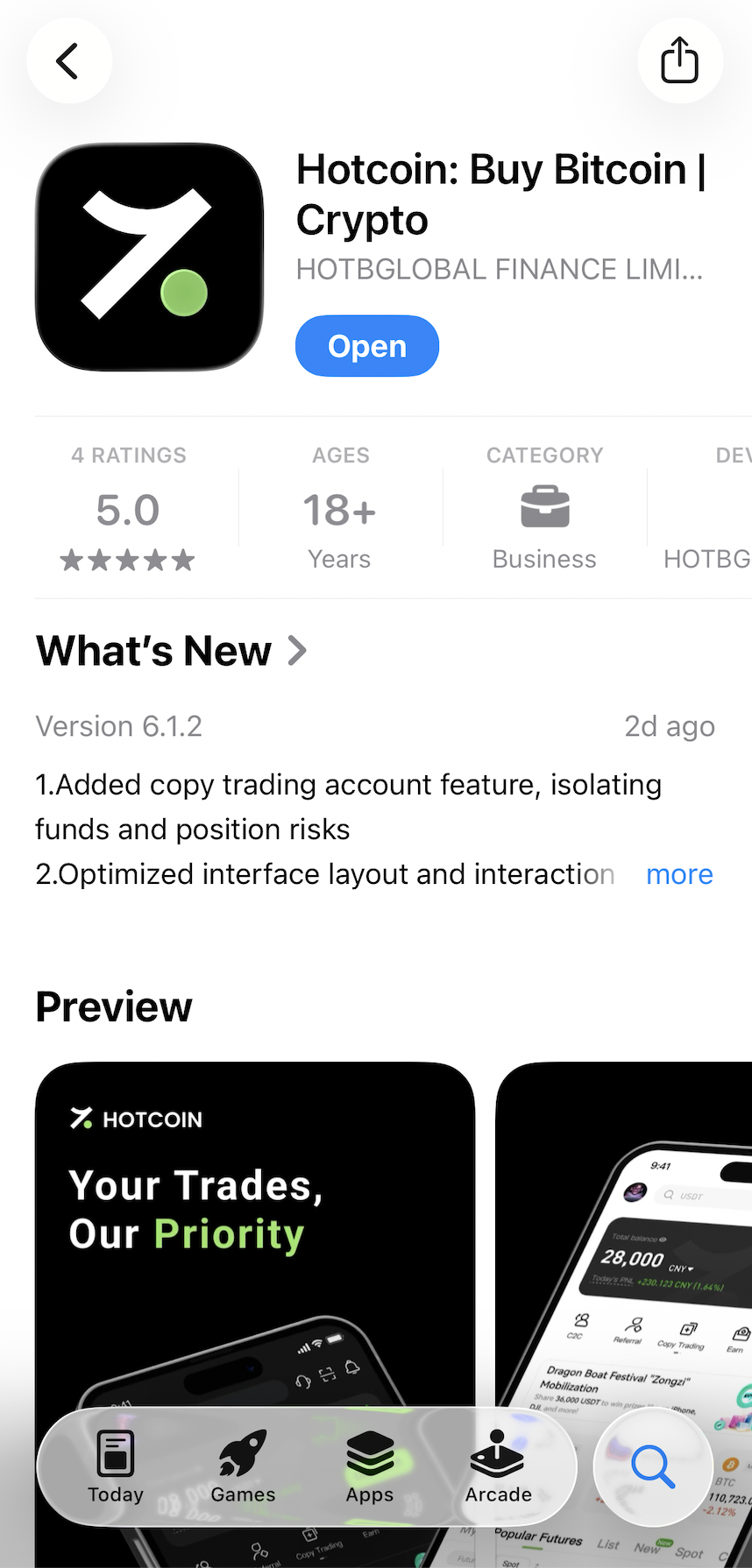
Step 4: Search and Download the Hotcoin App
Search for “Hotcoin” in the App Store and tap to download or update the app.
Step 5: Switch Back to Your Original Account (Optional)
Once the app is installed, you can sign back in with your original Apple ID. This will not affect the use of the app.
Notes
- Switching your App Store account will not affect your iCloud account or remove existing apps.
- Apps downloaded with a different Apple ID may require that account for future updates.
- If the app does not appear, try signing out and back in to the App Store.
- Make sure you are using a secure and trusted Apple ID.
- If you encounter any issues, please contact Hotcoin support for assistance.