Customer Support
service@hotcoinex.io
Product Feedback
Product@hotcoin.com
Business Inquiries
Business@hotcoin.com
Law Enforcement
Casecn@hotcoin.com
About
Products
Services
©2017-2026
service@hotcoinex.io
Product@hotcoin.com
Business@hotcoin.com
Casecn@hotcoin.com
Contents
Apple iOS Devices (iPhone/iPad)
Android Devices
On PC
To help you quickly access the Hotcoin official website and related pages, you can add the Hotcoin webpage directly to your device’s desktop or home screen. Please follow the steps below according to your device type.
If you encounter issues downloading the app on your mobile device, you can also use Hotcoin’s features and services through this method.
1. Open the Safari browser and go to the Hotcoin webpage you want to add.
2. Tap the “Share” icon at the bottom of the screen (a square with an upward-pointing arrow).

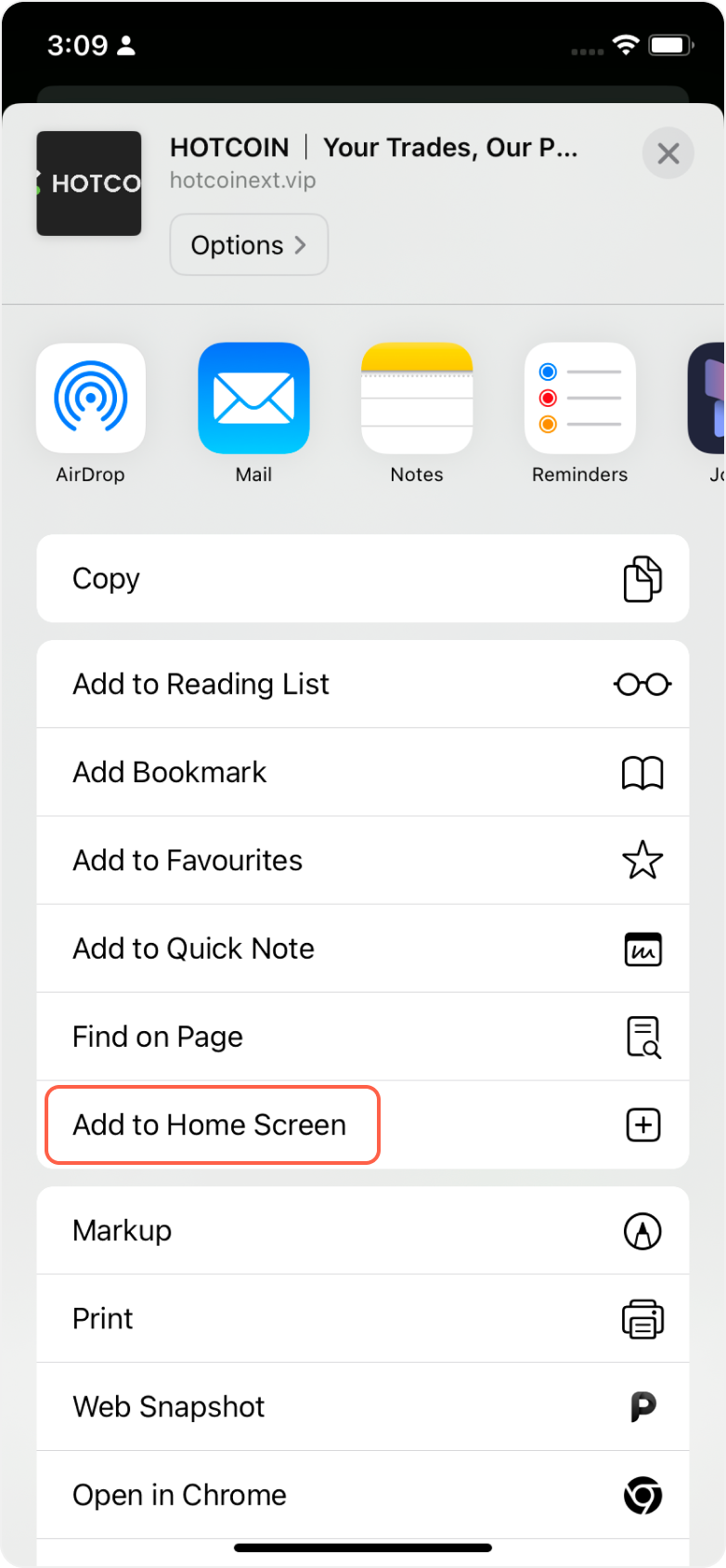
3. In the "Share" menu, scroll down and tap “Add to Home Screen.”
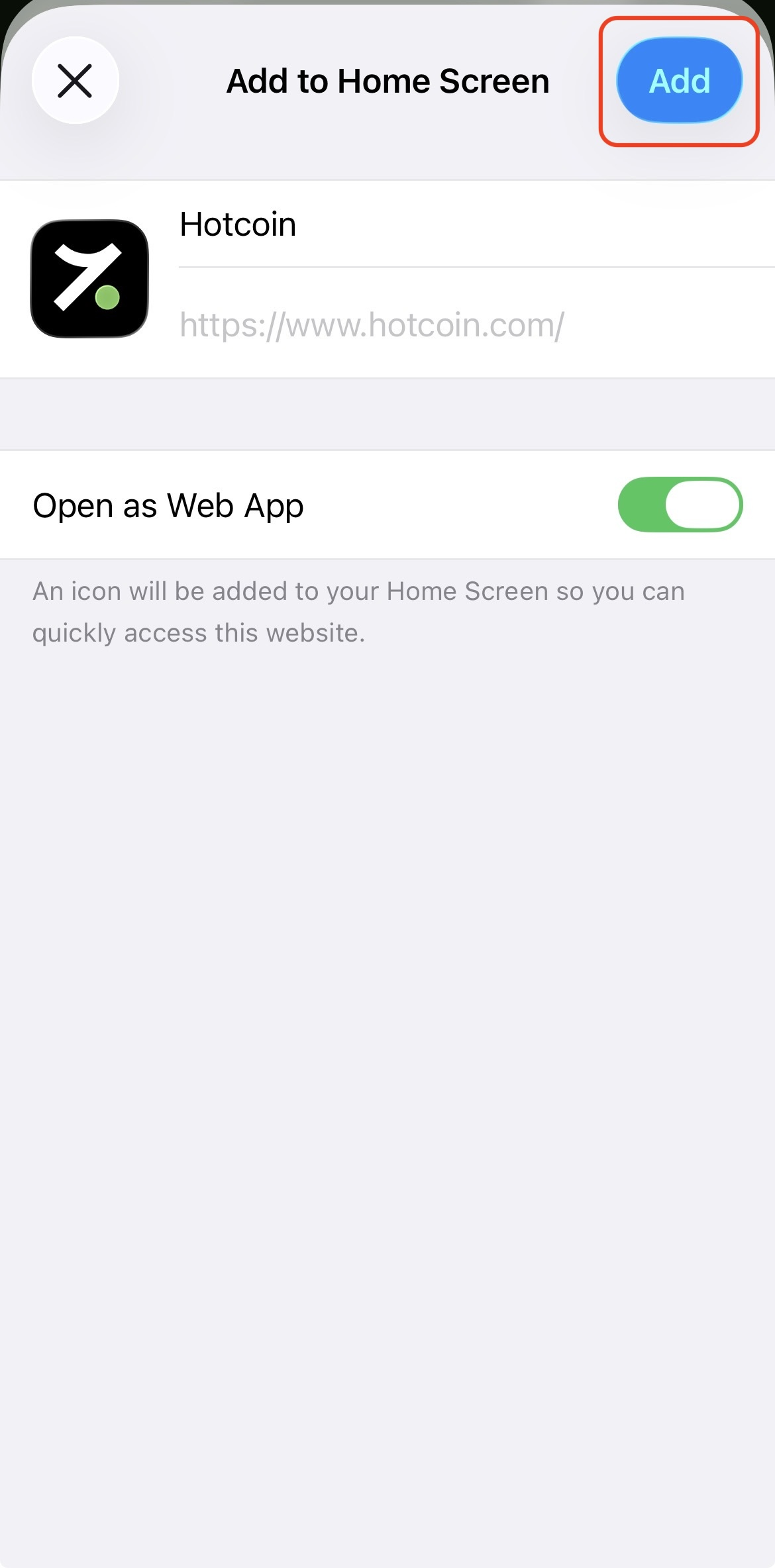
4. Edit the shortcut name (recommended: “Hotcoin”) and tap “Add” in the upper-right corner.
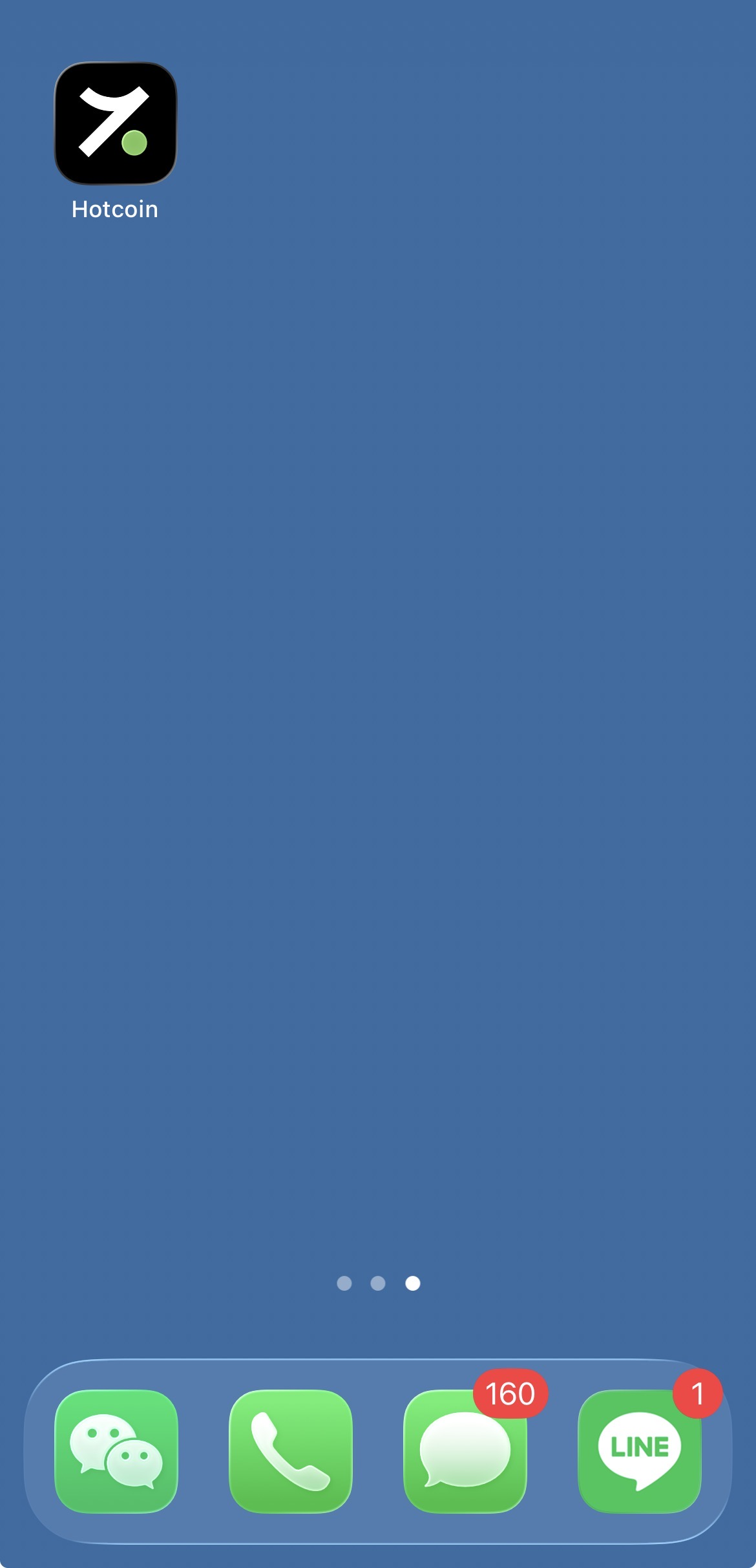
5. The Hotcoin webpage shortcut icon will appear on your iPhone or iPad home screen for quick access.
1. On your Android device, open the Hotcoin webpage you want to add using the system default browser or Microsoft Edge.
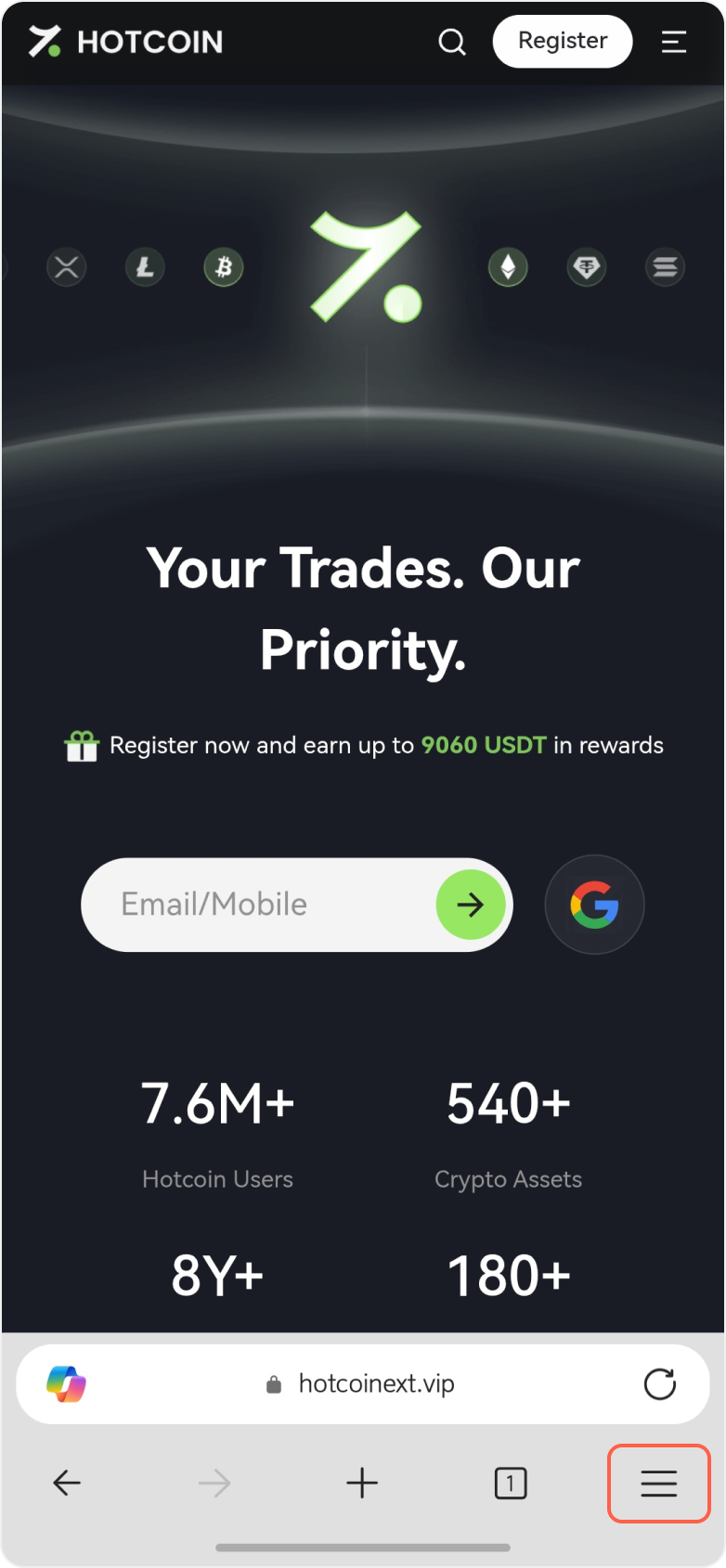
2. Tap the browser’s menu button at the top or bottom of the screen (usually represented by three dots or three horizontal lines).
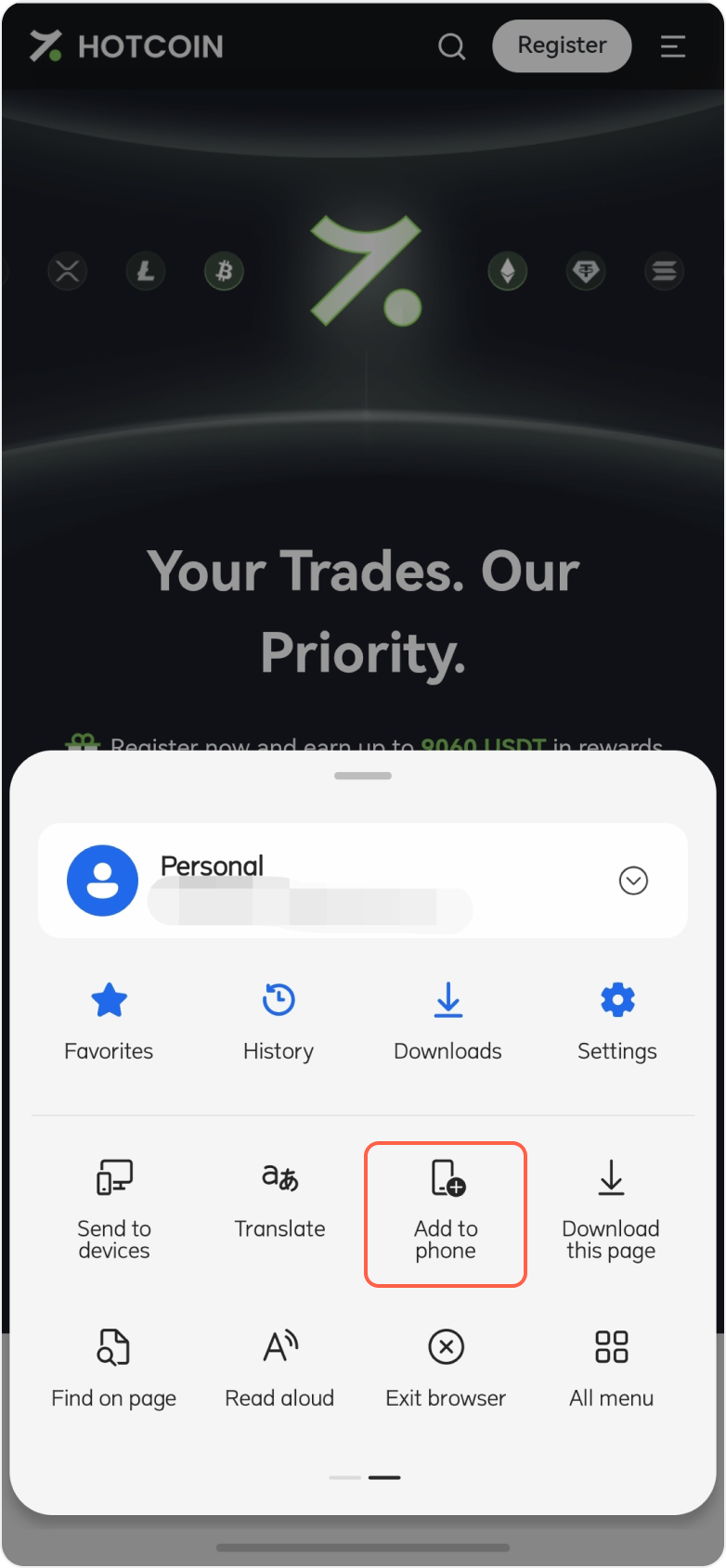
3. Select “Add to phone” or “Add shortcut to desktop” from the menu.
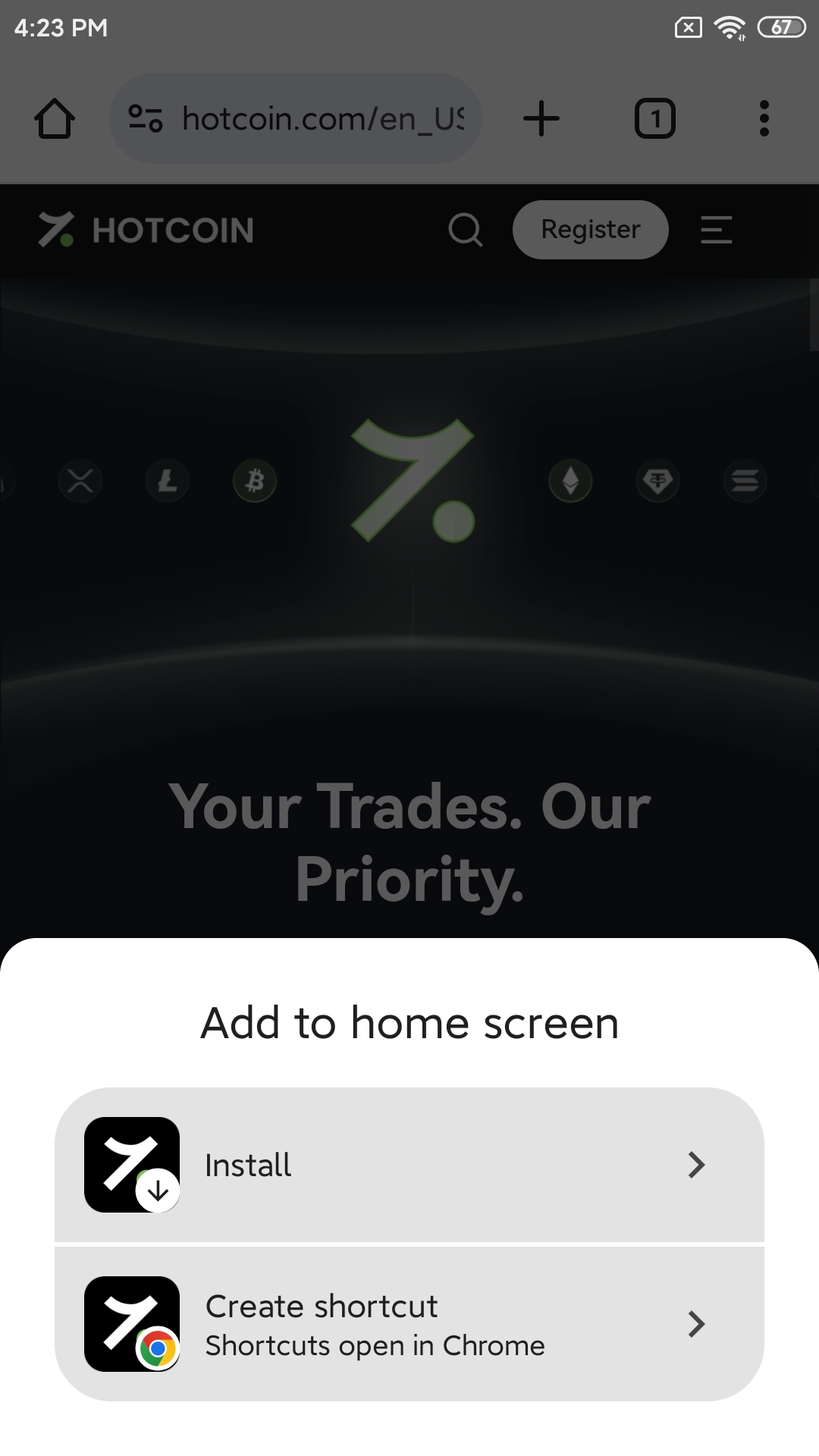
4. Install the website app or create a shortcut.
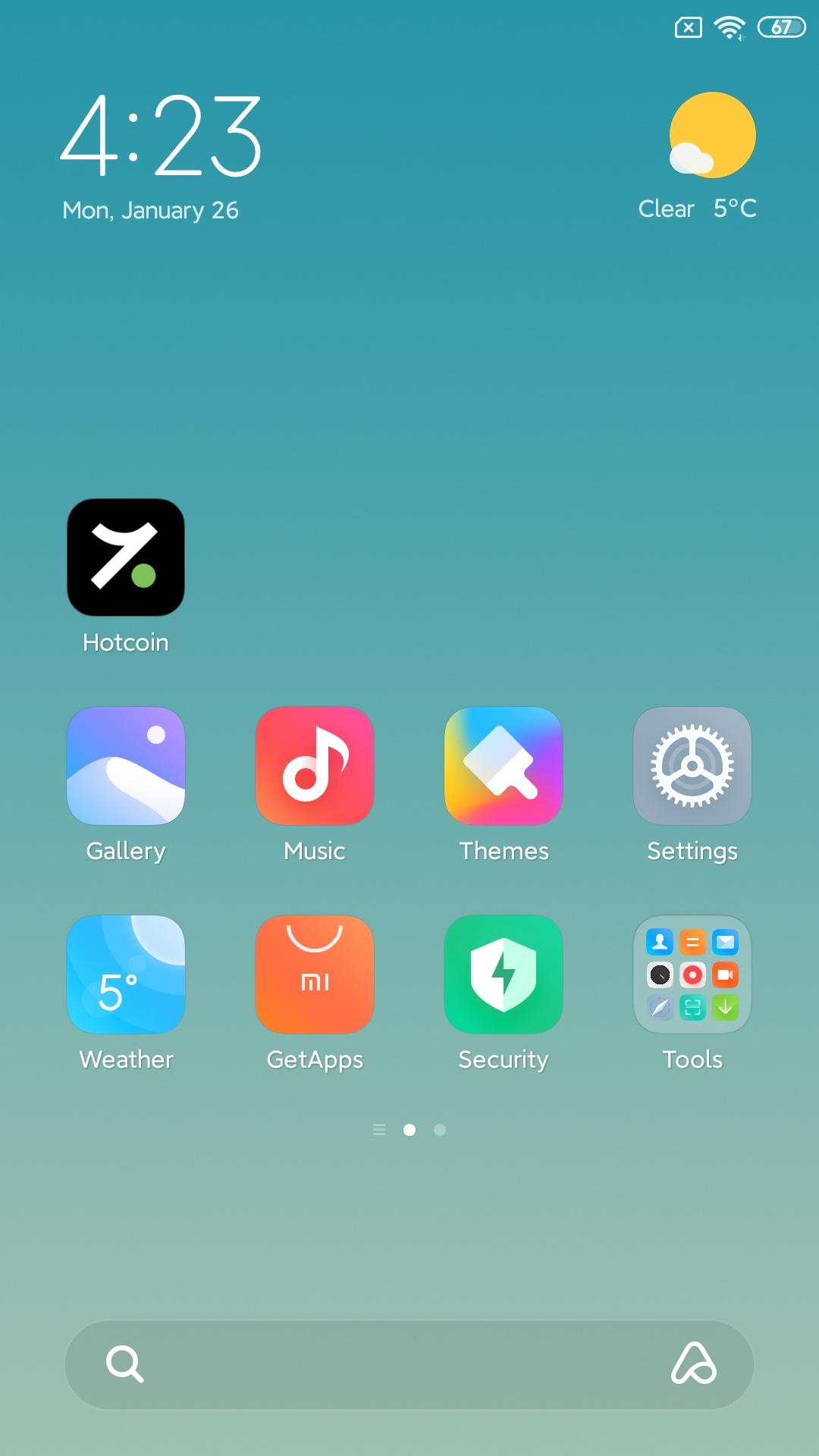
5. The Hotcoin webpage shortcut icon will appear on your phone’s home screen for quick access.
1. Open the Chrome browser and visit the Hotcoin webpage you want to add (e.g., https://www.hotcoin.com).
2. Click the “More” icon (three vertical dots ⋮) in the upper-right corner of the browser.
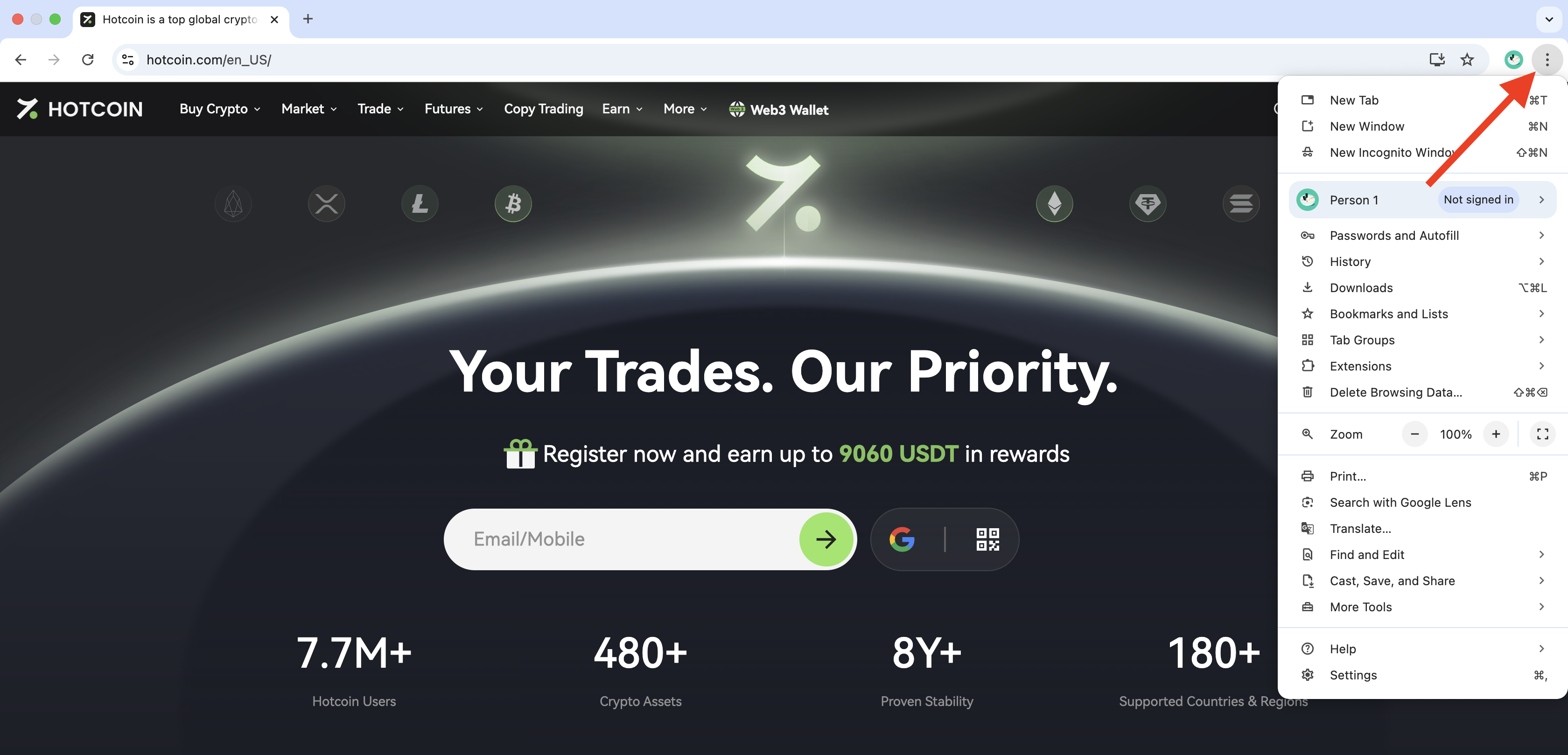
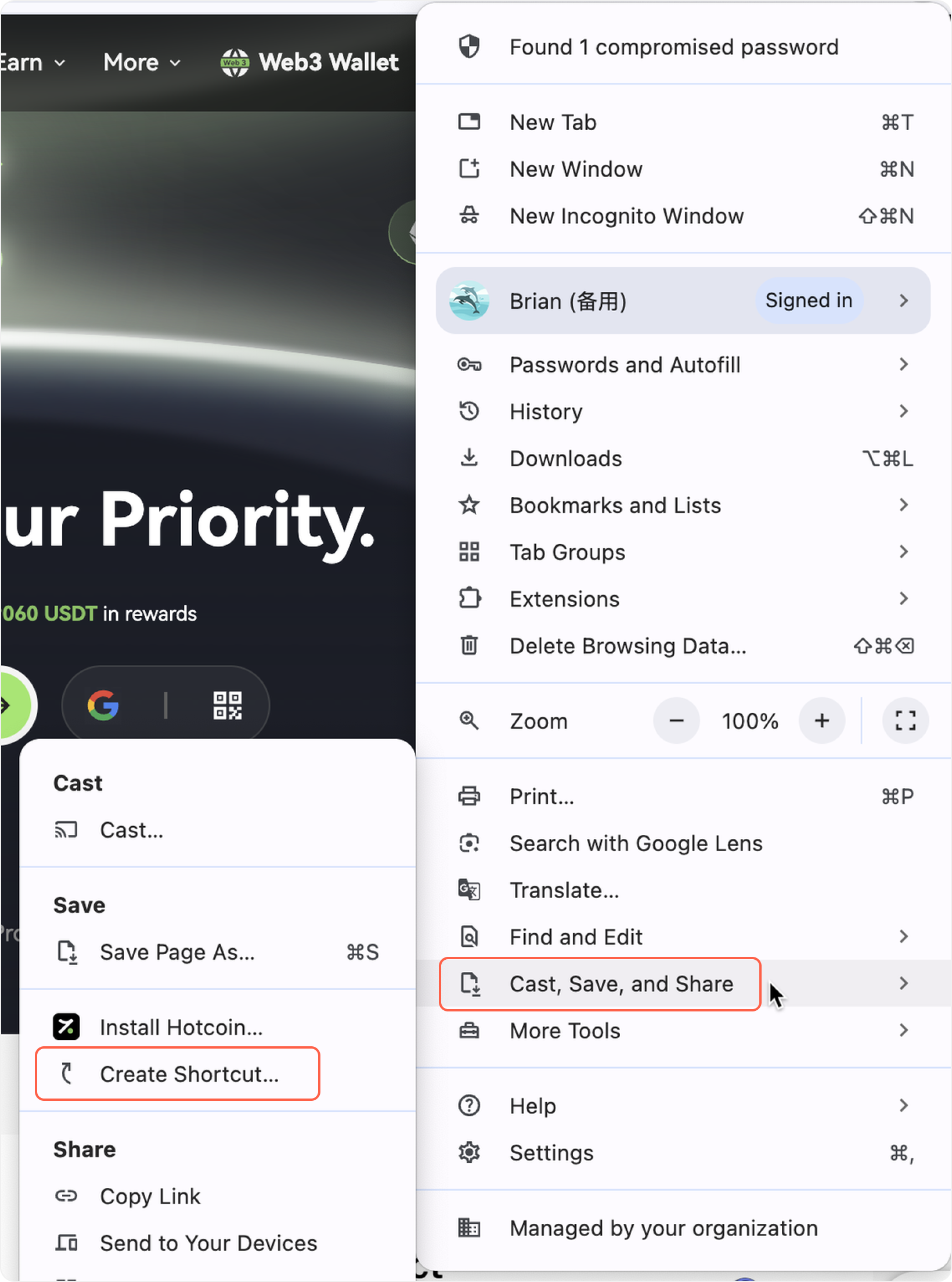
3. From the dropdown menu, select “Cast, Save, and Share,” then click "Install Hotcoin" or "Create shortcut."
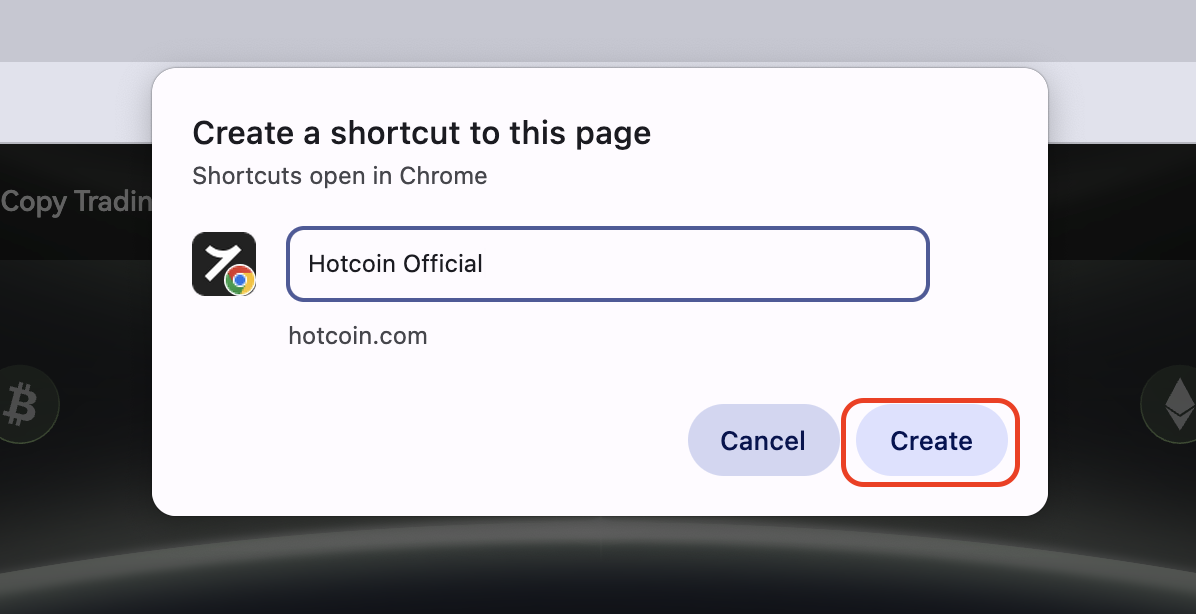
4. In the pop-up, you can customize the shortcut name, such as “Hotcoin Official”, and click "Create".
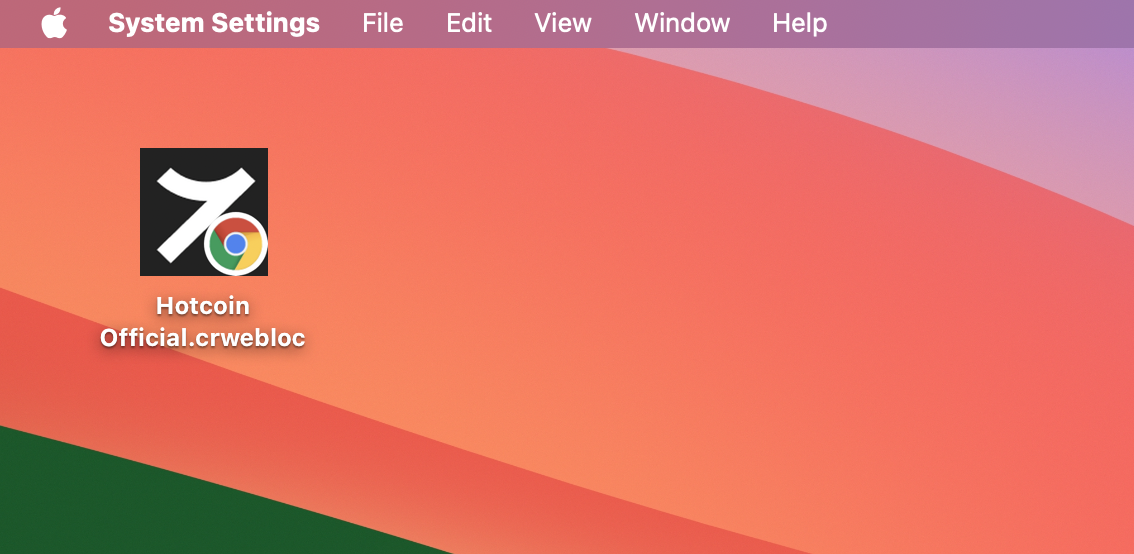
5. The Hotcoin webpage shortcut icon will appear on your desktop. Double-click it to quickly open the page.