

How to Transfer Google Authenticator to a New Phone: Backup, Export, and Lost Device Handling
When switching phones, first determine whether the verification codes in Google Authenticator have been synced to your Google Account or are stored only on the old phone. If you are signed in to the same Google Account, installing the app and signing in on the new phone will automatically sync your codes. If you chose to use the app without signing in, you need to export the accounts from the old phone and import them on the new phone. Do not delete the app from the old phone until the transfer is complete and you have verified that the new phone works.
If your phone is already lost, synced codes can be recovered by signing in again on a new device. If the codes were not synced and you did not save the setup keys or recovery materials, you will need to request re-binding from each website or app you had linked. Google Account backup codes can only be used to sign in to your Google Account; they cannot replace authenticator entries for other websites.
Key Takeaways
- Google Authenticator currently has two modes: syncing codes after signing in to a Google Account, or using the app without signing in and storing codes only on the current device. Do not confuse the two.
- To use sync, Android requires Authenticator version 6.0 or later, and iOS requires version 4.0 or later. After signing in to the same Google Account, codes will sync to the new device.
- If you do not sign in, you must have both the old and new devices at hand. On the old device, select "Transfer accounts → Export accounts"; on the new device, select "Transfer accounts → Import accounts" and scan the QR code.
- The setup key or QR code shown when binding an exchange or other website, as well as any recovery codes provided by that website, are not the same as Google Account backup codes and should be stored separately.
- If a device is lost or stolen, take immediate steps to prevent others from continuing to use the codes stored on the old device. Whether recovery is possible depends on whether you had sync or a backup in place.
- If you can no longer complete Google verification for an account, enter the account security page through the official app or the official website you typed yourself, or contact official customer support as prompted on the page, subject to their instructions at the time. Never send verification codes or keys to anyone.
Check Which Storage Method You Use Before Switching Phones
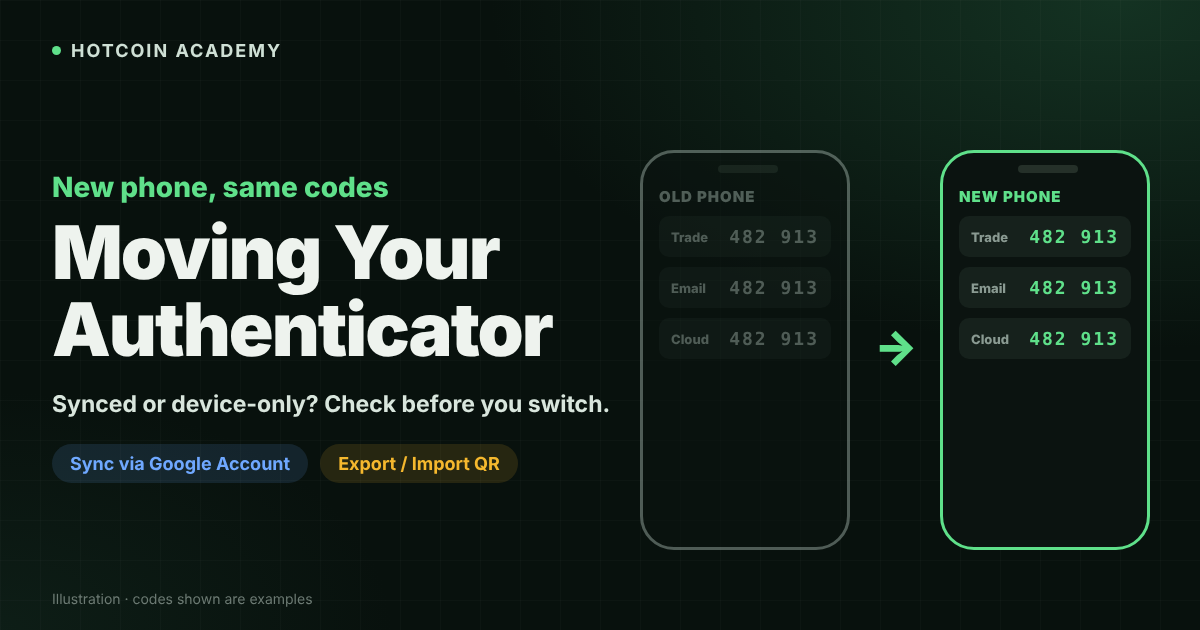
Google's official documentation states that saving codes in your Google Account helps reduce the risk of being unable to sign in after switching phones. You can also choose not to use this protection and use the app without signing in. The transfer requirements differ between the two methods:
- Signed in to a Google Account with sync enabled: Codes sync with the account to devices that meet the version requirements. When switching phones, the key step is to install the official app on the new phone and sign in to the same Google Account.
- Not signed in, stored only on the device: Codes will not appear on other devices. When switching phones, you must still be able to open the old phone to export them manually.
Before switching phones, you can check the following:
- Open Google Authenticator on the old phone and check whether you are signed in to a Google Account. Per Google's documentation, if you cannot find your codes, you may have signed out or the codes may be stored in another Google Account; tap the profile icon in the top-right corner to confirm the current sign-in status.
- Confirm that the old phone can still be unlocked, the app is up to date, and the new phone is ready to install the official app.
- Locate the setup keys, QR codes, or recovery codes each website gave you when binding, as well as your Google Account backup codes (if any). These materials should be stored offline in a place only you can access. Do not send them through messaging apps or public cloud albums.
- Before you have tested the codes on the new phone, do not uninstall the old app or factory reset the old phone.
Google also warns that switching from synced mode to "Use Authenticator without signing in" will remove codes from all your Google Accounts and store them only on the current device; afterward, these codes cannot be used on other devices. Do not tap this option accidentally during a phone switch.
If you have not yet bound a website or exchange account and want to know the specific steps, see the Complete Guide to Two-Factor Authentication (2FA). This article only covers how to switch phones, back up, and handle device loss for the authenticator itself.
How to Sync to a New Phone When Signed In to a Google Account
According to Google Account Help, after you sign in to your Google Account in Google Authenticator on a new device, your codes will automatically sync to that device. Google states that it encrypts these codes in transit and at rest.
Requirements (subject to Google's current documentation):
- Authenticator version 6.0 or later on Android devices
- Authenticator version 4.0 or later on iOS devices
- To use the app on an Android device, the system must be Android 6.0 or later; on iPhone or iPad, Google recommends the latest version of the device operating system
Follow the steps below; actual button names may vary depending on the app's current interface:
- Search for and install Google Authenticator from the official app store on the new phone, and verify the developer is Google LLC.
- Open the app and sign in to the same Google Account used for sync on the old phone.
- Once the codes appear, spot-check a few frequently used entries by entering the codes generated on the new phone into the corresponding websites to confirm they work.
- After confirming everything works, decide whether to keep the app on the old phone. Do not wipe the old device just because it "looks like it has synced."
If you cannot see your entries on the new phone, first check whether you signed in to the correct Google Account, or switch to another account as described in Google's documentation. Google also states that if you cannot sign in to your Google Account, you need to go through the Google Account recovery process.
If you cannot sign in to that Google Account on the new phone for the time being but the old phone is still usable, you can first complete the transfer using the export and import steps in the next section, and handle Google Account sign-in or recovery separately later. There is no need to repeatedly try signing in on the new device.
How to Manually Export and Import When Not Signed In to a Google Account
Google's documentation states that if you use Authenticator without signing in to a Google Account, you can still manually export codes to other devices. You will need:
- The old device that holds the codes
- The latest version of Google Authenticator installed on the old device
- Your new device
Google's current step-by-step instructions are:
- Install Google Authenticator on the new device.
- Tap "Get started" in the app.
- Follow the on-screen prompts. Google's step-by-step instructions say "Sign in to your Google Account"; if you originally chose to use the app without signing in, follow the options shown in the app's current interface and do not confuse "sync to Google Account" with "manual export."
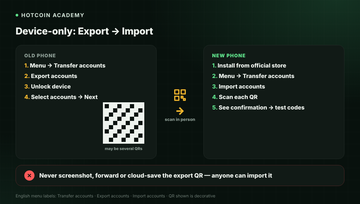
- Generate a QR code on the old device: open Authenticator and tap the "Menu" icon → "Transfer accounts" → "Export accounts." The system will ask you to unlock the device. Select the accounts to export and tap "Next." If you export multiple accounts at once, the old device may generate multiple QR codes, all of which need to be scanned. Do not close the QR code page on the old device until the import is complete. If the app interface is in English, the corresponding options are generally Transfer accounts, Export accounts, and Import accounts.
- On the new device, tap the "Menu" icon → "Transfer accounts" → "Import accounts," and scan the QR code on the old device.
After scanning is complete, Google states that the system will display a confirmation message. At this point, you should still try signing in or performing a sensitive action on the new phone to confirm the codes work before handling the old device.
Whether you use sync or manual import, after the new phone is verified and working, Google also recommends enabling "Screen lock" in the app: once enabled, you must first verify on the device (for example, by entering a PIN, drawing a pattern, or using biometrics) before you can use Authenticator. The entry point is generally "Menu" icon → "Settings" → "Screen lock," subject to the current interface. If you use Authenticator to protect your Google Account, Google recommends registering additional two-step verification methods to ensure you can still sign in to that Google Account.
What Setup Keys and Backup Codes Can Do
When switching phones or losing a device, a common confusion is treating different kinds of "backup" as the same thing.
- The setup key or QR code shown when binding a website: This is the shared secret between that website and the authenticator. Anyone who obtains it can generate the same set of codes. The Help Center also reminds users when explaining how to set up Google verification: save the key or QR code when binding so that you can re-bind on a new phone if your phone is lost. Store it offline in a way only you can access.
- Recovery codes provided separately by that website: Some services provide a separate set of recovery codes. Their purpose is subject to that service's instructions at the time and should not be assumed to be the same as an authenticator export.
- Google Account backup codes: These are backup sign-in methods for Google two-step verification, used to sign in to your Google Account when you cannot use your usual second step. Google states that each backup code can only be used once; you can generate a new set (10 codes), and once the new set takes effect, the old set becomes invalid; do not share them with anyone. They cannot directly restore authenticator entries for other websites.
Therefore, before switching phones, check not only whether the authenticator itself is synced or can be exported, but also which account each of these backups corresponds to.
What to Do If Your Phone Is Lost or Stolen
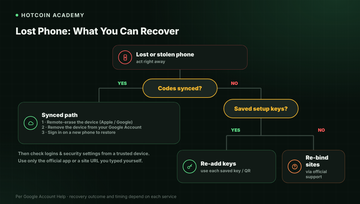
According to Google's official documentation, if your device is lost or stolen, you should take immediate steps to prevent others from continuing to use the codes stored on that device:
- You can first use the remote wipe option provided by Apple or Google.
- If the codes have been synced to your Google Account, you can also remove the codes by removing the corresponding device from your Google Account; then install the app on a new device and sign in to the same account to see if they can be recovered.
- If the codes have not been synced to your Google Account, Google states that you need to go to each website where you have set up Google Authenticator, remove these codes, and then link them to the new device.
Afterward, it is recommended to use a trusted device to check the sign-in history and security settings of your email and important accounts for any changes. If you notice unusual sign-ins or modified security settings, see Detecting Abnormal Account Logins and enter your account through the official entry point you saved yourself, rather than using customer service numbers or private message links found through search.
Google also notes that version 7.0 no longer provides a time correction setting; the app now uses the operating system's time. If codes are frequently rejected, confirm that you are entering a current, unexpired code for the correct account and that your device time is set to sync automatically with your time zone.
If You Can No Longer Generate Google Verification Codes for an Account
If the lost Google verification is the one bound to your trading account, first check whether you still have the setup key or QR code from when you bound it. The Help Center article "How to Set Up Google Verification (2FA)" states: it is strongly recommended to save the key or QR code when binding so that you can re-bind on a new phone if your phone is lost; if you forgot to back it up, please contact customer support and provide the necessary information according to the process and requirements. After customer support reviews and processes it, you can re-bind a new Google verification code.
The security notice in the same section also states: do not reveal your password, SMS verification code, email verification code, or two-factor authentication code to anyone; official staff will not ask for this information. The Help Center article "How to Manage Email, Phone Number, and Security Settings?" states that items such as Google verification can be managed on the "Account Security" page; if you cannot complete verification, please contact platform customer support and complete identity verification as prompted. Some operations may trigger temporary security restrictions; whether they occur and how long they last are subject to the page or customer support's instructions at the time.
Current help pages do not list fixed ticket steps, a required document checklist, or review time limits. Therefore, do not prepare a "standard set of materials" based on rumors, and do not submit documents or verification codes in unofficial chats. Always enter through the official app or the official website you typed manually or saved as a bookmark.
Common Misconceptions
- "The app syncs automatically, so I can wipe the old phone first" — Codes will only be automatically carried over after signing in on the new device if you have already signed in to a Google Account and completed sync. Device-only entries must be exported first. In either case, verify the new phone works before handling the old device.
- "Deleting the old app will make the codes appear automatically on the new phone" — Deleting the old app does not automatically complete the transfer. If entries have been synced to your Google Account, Google states that deleting a code on a synced device will also delete it from all synced devices.
- "I don't need a backup; if I lose my phone, customer support will definitely restore it the same day" — Without sync or a backup, you need to re-bind each website; whether a trading account can be reset is subject to official customer support's process at the time, and the help page does not state a fixed completion time.
- "Google backup codes can open authenticator entries for all websites" — Backup codes are for signing in to your Google Account and cannot replace setup keys or recovery codes for other websites.
- "Sending keys or QR codes to a cloud album or to 'customer support' is safer" — Keys and codes themselves can generate the second sign-in step. Official staff will not ask for this information; once leaked, it is equivalent to handing over your second-factor verification.
- "If codes are always wrong, my account has been hacked" — First check whether you selected the correct entry, whether the code has expired, and whether your phone time is set to sync automatically. If failures continue, stop entering codes, confirm you are on the official page, and then consider resetting.
- "Screenshotting the export page and sending it to the new phone to scan, or sending it to myself as a backup, is easier" — An export QR code is like a setup key: anyone who obtains it can import it and generate codes. Scan directly while both phones are with you, close the page after scanning, and do not forward it through messaging apps or cloud drives.
- "Entering the key into a so-called desktop authenticator is more convenient" — Only install the authenticator on your phone through the official app store, and do not hand keys or QR codes to tools of unknown origin.
FAQ
Q1: What is the difference between sync and "Transfer accounts"? Sync relies on signing in to your Google Account; after signing in to the same account on a new device, codes are obtained automatically, and the old phone does not need to be nearby. "Transfer accounts" means exporting on the old device and scanning to import on the new device, which requires that the old device is still operable. The prerequisites differ; do not mix the two.
Q2: Can I switch phones without signing in to a Google Account? Yes, but you must still be able to use the old device and follow the official export and import process. If the old device can no longer be opened and you did not save the setup keys or recovery materials for each website, you will need to request re-binding from each website.
Q3: After the transfer is complete, will the codes on the old phone still work? Google's export documentation only confirms that the import to the new device succeeded; it does not state that the old device immediately becomes invalid as a necessary result. Therefore, after completing the transfer, verify on the new device first, then decide whether to delete the old entries based on whether you still need the old device and each website's security settings. Be especially careful when deleting synced entries, as they may be removed from all synced devices. After a manual import, temporarily having the same set of codes on both devices does not mean the transfer failed; you should still verify on the new device first, then decide whether to delete the old entries.
Q4: Can Google Account backup codes be used to recover Google verification for a trading account? Not directly. Backup codes are a backup sign-in method for Google two-step verification and are only for your Google Account. To get a trading account back into the authenticator, you still need that account's setup key, the recovery method provided by that service, or official customer support handling it according to the rules at the time.
Q5: If my phone is lost, can Google verification for my trading account definitely be recovered? If you saved the setup key or QR code when binding, you can re-add it on a new phone according to that service's instructions. If you have no backup, the Help Center says to contact customer support and provide information according to the process, and re-bind after review and processing. The help page does not state that approval is guaranteed or specify a fixed time limit; the result is subject to customer support's instructions at the time.
Q6: What should I do if codes are always wrong after switching phones? First confirm you have selected the entry for the correct account and wait for a new code to appear before entering it. Check whether your phone's date, time, and time zone are set to sync automatically. Google states that app version 7.0 no longer provides time correction and uses system time instead. If it still fails, stop repeated attempts, confirm you are on the official page, and then consider using a saved backup or the official reset path.
Conclusion
When moving Google Authenticator to a new phone, first check whether the codes are synced in your Google Account or only on the old device. If they can sync, sign in to the same account on the new device and complete verification; if they are stored only on the device, use the official export and import, and handle the old phone only after the new device passes verification. If the device is lost, whether recovery is possible depends on whether you had sync or saved setup keys and recovery materials; without these backups, you can only request re-binding from each linked website, subject to official customer support's instructions at the time.
If you also want to complete your account's layered protection by managing passwords, authenticators, and recovery materials, you can start with Crypto Security Fundamentals.
Risk notice: This article is for educational and informational purposes only and does not constitute investment, legal, or security guarantees. Google Authenticator's interface and documentation may be updated; please refer to Google Account Help and the current app interface. Only install the authenticator through the official app store, and only enter account security pages through the official app or the official website you typed yourself. Do not provide verification codes, keys, or QR codes to anyone. The outcome of a lost device or failed verification varies by account, and recovery of access cannot be guaranteed.
Lectura recomendada
Ver más