
How to Use Hotcoin Web3 Wallet
Hotcoin Web3 Wallet is a multichain self-custody wallet. You can create or import a wallet in the Hotcoin App, view and manage on-chain assets, and connect to decentralized applications. Before using it, securely back up your recovery phrase or private key. If you forget your wallet password or lose your recovery credentials, the platform generally cannot recover them for you.
What Is Hotcoin Web3 Wallet?
Hotcoin Web3 Wallet is a multichain decentralized wallet provided by Hotcoin. It lets users manage digital assets across multiple blockchains from one wallet. According to Hotcoin's official information, the wallet can currently manage assets on networks such as Ethereum, BNB Smart Chain, and Solana, and supports transfers and interactions with decentralized applications.
Unlike a standard exchange account, a Web3 wallet is self-custodial. You control the private key and recovery phrase. Hotcoin provides the interface for viewing assets, initiating transactions, and connecting to applications, but it does not store or recover your private key on your behalf. You are responsible for safeguarding your recovery phrase, making on-chain transfers, and reviewing authorization signatures.
How Do You Access Hotcoin Web3 Wallet?
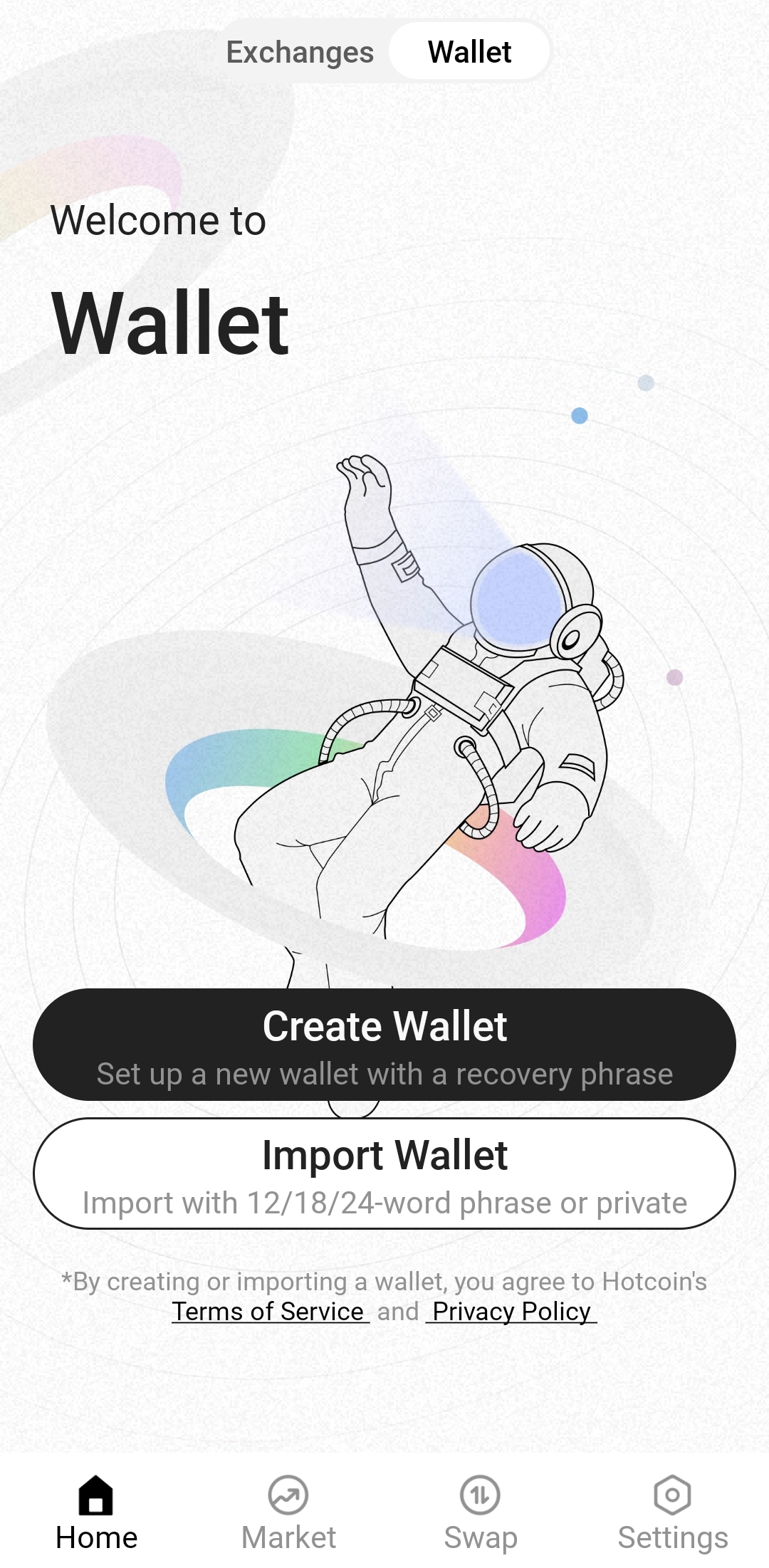
After signing in to the Hotcoin App, tap the “Web3” entry at the top of the home page to open the wallet. If you have not set up a wallet, the page displays “Create Wallet” and “Import Wallet.” If you have already created or imported one, you will go directly to the wallet home page, where your on-chain assets are shown.
On the web, you can open the relevant page from “Web3 Wallet” in the navigation bar on the Hotcoin website. The web page is mainly for viewing feature information or connecting a wallet. For creating or importing a wallet and managing assets day to day, follow the features currently shown in the App. Entry names and locations may vary slightly by region, language, and App version.
Follow these steps:
Open the official App: Download or update the App from the Hotcoin website, an official app store, or another channel verified by Hotcoin.
Sign in: Use your own Hotcoin account. Do not open the App through an installation package or web link sent by a stranger.
Tap Web3: Find “Web3” at the top of the App's home page and open the Hotcoin Web3 Wallet page.
Choose how to proceed: New users select “Create Wallet,” while users with an existing wallet select “Import Wallet.”
How Do You Create a New Hotcoin Web3 Wallet?
To create a Hotcoin Web3 Wallet, select “Create Wallet” on the Web3 page in the App, set a funds password as prompted, and back up your recovery phrase or private key. After setup, verify the wallet address and test the receiving and sending functions with a small amount of crypto.
The process is as follows:
Select Create Wallet: On the Web3 page, tap “Create Wallet” and read the wallet agreement and risk notice.
Set a funds password: Create a separate funds password as prompted. Do not reuse your login password, birthday, or a sequence of consecutive digits.
Back up your recovery credentials: Record the recovery phrase or private key shown on the page and complete any required word-order verification. The exact type of recovery credential depends on the current version.
Verify the wallet address: After setup, open the wallet home page, select the relevant network, and view the wallet address.
Run a small test: For your first deposit, send a small amount first. Confirm that the address, network, and arrival status are correct before transferring more.
Your recovery phrase and private key are the essential credentials that control your on-chain assets. Do not take screenshots or store them in cloud drives, email, chat apps, or online notes. Never give them to anyone claiming to be customer support, a project representative, or an airdrop organizer. Official support will never ask you to send your full recovery phrase or private key.
How Do You Import an Existing Wallet?
If you already have another self-custody wallet, select “Import Wallet” on the Hotcoin Web3 page and use a recovery phrase, private key, or another recovery method currently supported on the page. Importing does not move assets out of the original wallet. It allows Hotcoin Web3 Wallet to access the same on-chain addresses and obtain the corresponding signing authority.
Follow these steps:
Tap Import Wallet: Select “Import Wallet” on the initial Web3 page.
Choose an import method: Select a recovery phrase, private key, or another supported credential type from the options shown.
Enter the recovery credentials: After confirming that your device and network environment are secure, enter the recovery phrase in the correct order or provide the private key.
Set a funds password: Create a funds password for transaction confirmations and wallet access on the current device.
Check the wallet address: After importing, compare the public address with the one shown in your original wallet and make sure it matches exactly.
Before importing, confirm that you are using the genuine Hotcoin App. If the address shown after you enter the recovery phrase differs from the original wallet address, check the word order, network, and import method before transferring any assets. Anyone who asks you to send a recovery phrase in a chat for “verification” may be attempting to steal your wallet.
How Do You View On-Chain Assets in Hotcoin Web3 Wallet?
On the wallet home page, you can view the current wallet address, network, token balances, and estimated asset values. Because the same token can exist on multiple networks, always confirm the token name, contract address, and network. Do not rely on a name such as “USDT” or “USDC” alone to determine whether an asset is genuine.
Check the following information when reviewing on-chain assets:
Current wallet: Confirm that you are viewing the correct wallet account and public address.
Current network: Check whether the asset is on Ethereum, BNB Smart Chain, Solana, or another supported network.
Token balance: Confirm that the token amount, estimated value, and available balance match the blockchain record.
Transaction history: Review incoming transfers, outgoing transfers, swaps, and contract interactions. If necessary, copy the transaction hash into the appropriate block explorer.
Token contract: If an asset does not appear automatically, verify the contract address through the project's official channels before adding it, so you do not add a fake token with the same name.
If a transfer is temporarily missing from the wallet page, it does not necessarily mean the asset is lost. Copy the wallet address or transaction hash and check its status in a block explorer for the relevant network. If the transaction succeeded on-chain but is still not visible in the wallet, check the network, token contract, and App version.
How Do You Manage Digital Assets in Hotcoin Web3 Wallet?
Hotcoin Web3 Wallet can receive, send, and swap digital assets. Before any on-chain action, verify the network, wallet address, token contract, and gas fee. Your Web3 wallet balance and Hotcoin exchange account balance do not synchronize automatically. Moving assets between them usually requires an on-chain deposit or withdrawal.
6.1 How Do You Receive Digital Assets?
Tap “Receive” on the wallet home page, select the asset and blockchain network, and then copy the receiving address or display its QR code. The withdrawal network selected by the sender must match the receiving network in your wallet. Otherwise, the assets may not arrive correctly.
When receiving an asset for the first time, start with a small test. Once it arrives, transfer the remaining amount. Also check the sending platform's minimum withdrawal amount and withdrawal fee, and confirm that Hotcoin Web3 Wallet supports the network.
6.2 How Do You Send Digital Assets?
Select the correct token and network, paste the recipient address, and enter the amount. Before submitting, verify the first and last characters of the address, the estimated gas fee, and the amount the recipient will actually receive. Blockchain transactions are generally irreversible. If you send assets to the wrong address, the platform may not be able to recover them.
Do not rely entirely on an address in your clipboard, because malware can replace copied content. For a larger transfer, send a small test first and wait until it is confirmed on-chain before proceeding.
6.3 How Do You Swap Tokens?
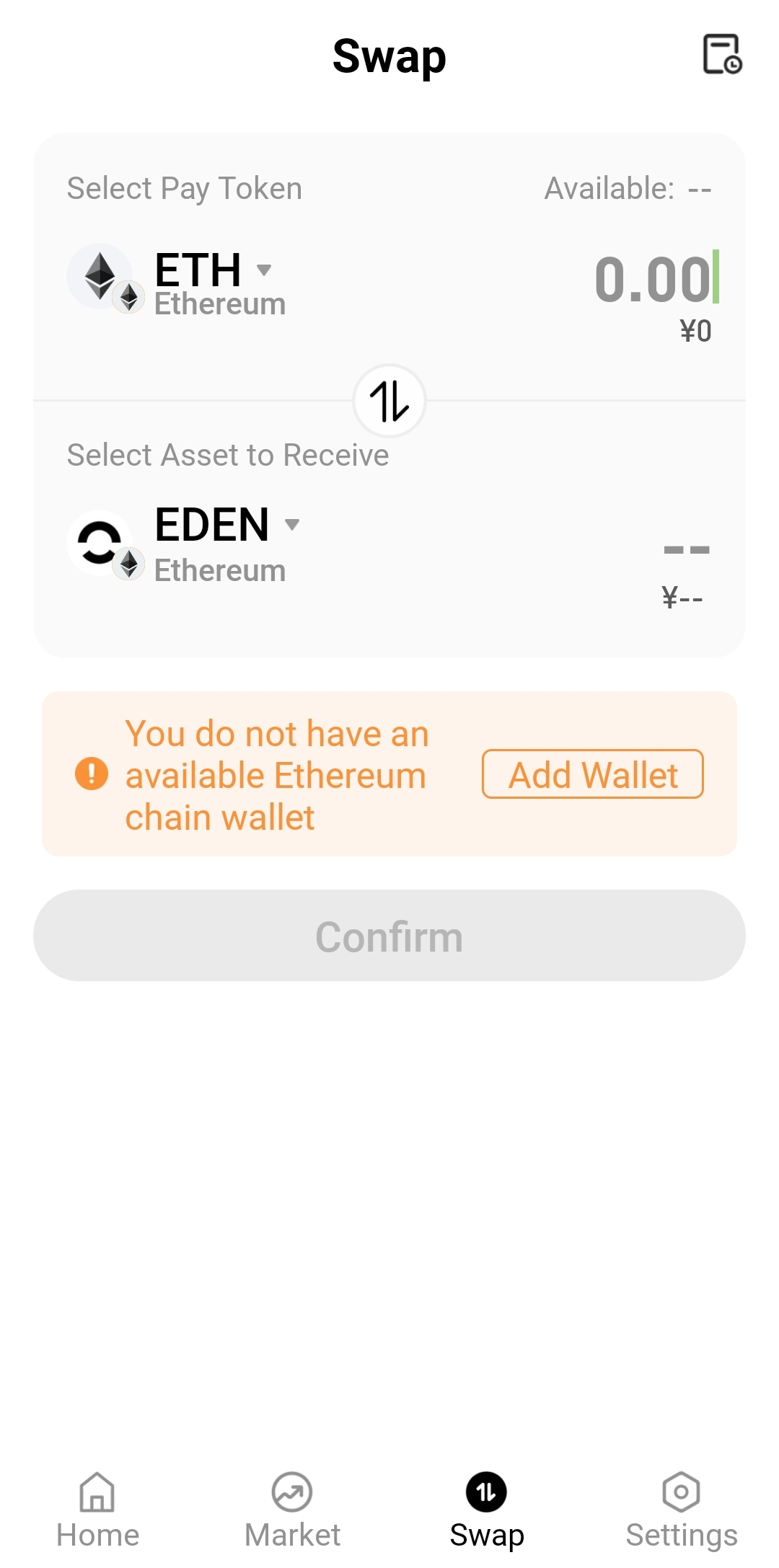
Tap “Swap” on the wallet home page, select the token you want to pay and the token you want to receive, and enter the amount. The page may show the estimated amount received, price impact, network fee, and routing information. If the relevant smart contract does not yet have permission to use the token, you will first be asked to approve the token before submitting the swap.
Token approval and swapping are two separate on-chain actions. Approval permits a smart contract to use a specified token; the swap is the actual trade. Before signing, check the approved contract, allowance amount, and network fee. Do not approve requests automatically just because several signature prompts appear in succession.
How Is Hotcoin Web3 Wallet Different from an Exchange Account?
A Hotcoin exchange account is part of the platform's account system, where deposits, spot trading, and withdrawals are managed through the platform interface. Hotcoin Web3 Wallet is a self-custody on-chain wallet. Its assets are recorded at the relevant blockchain address, and each transaction requires your signature and a gas fee.
Balances in the two account types do not move between them automatically. To transfer assets from an exchange account to Web3 Wallet, copy the correct receiving address from Web3 Wallet and submit a withdrawal from the exchange. To move assets in the other direction, copy the exchange deposit address and initiate an on-chain transfer from Web3 Wallet.
The most important difference is how access is recovered. You can usually regain access to an exchange account through identity verification and account security procedures. A self-custody wallet, however, mainly relies on the recovery phrase or private key. Losing or exposing the recovery phrase, or entering it on a phishing site, can cause permanent losses.
What Are Common Mistakes When Using Hotcoin Web3 Wallet?
Selecting the wrong blockchain network: If the sender and recipient use different networks, the asset may not appear and may be difficult to recover.
Failing to reserve gas: Transfers, approvals, and swaps usually require the network's native token to pay gas fees.
Exposing the recovery phrase or private key: Anyone who obtains your recovery credentials can import the wallet on another device and transfer its assets.
Interacting with fake tokens or airdrops: An unfamiliar token in your wallet does not mean you received a legitimate reward. Do not open websites promoted by unknown tokens.
Ignoring the scope of contract approvals: Unlimited allowances increase the potential losses from vulnerable or malicious smart contracts.
Skipping a small test transfer: Sending a large amount immediately when using a new address, network, or application increases the cost of an operational mistake.
Confusing a wallet password with a recovery phrase: A funds password is mainly used for access and confirmation on the current device. The recovery phrase or private key is the credential that restores control of the wallet.
A Safe Beginner Workflow
When using Hotcoin Web3 Wallet for the first time, follow this sequence:
Confirm the official App: Download or update the App through an official Hotcoin channel.
Create or import a wallet: Enter recovery credentials only on a secure device and trusted network.
Back up the recovery phrase offline: Write it down and store it somewhere inaccessible to other people.
Verify the wallet address: Confirm that the network and public address match your expectations.
Transfer a small amount: Test receiving, sending, and gas payments before moving more assets.
Connect only to trusted applications: Check the domain, contract, allowance, and signature details.
Review approvals regularly: Disconnect applications you no longer use and revoke unnecessary token approvals.
Frequently Asked Questions
How Do I Create a Hotcoin Web3 Wallet?
Open the Hotcoin App, tap “Web3” at the top of the home page, select “Create Wallet,” set a funds password, and back up the recovery phrase or private key as prompted. After creating the wallet, verify its address and test the network and receiving function with a small transfer.
How Do I Import a Wallet into Hotcoin Web3 Wallet?
On the Web3 page, tap “Import Wallet.” Select a recovery phrase, private key, or another import method currently supported on the page, enter the recovery credentials, and set a funds password. After importing, confirm that the public address matches your original wallet address.
Where Can I See Assets in Hotcoin Web3 Wallet?
Open the wallet home page and select the correct wallet account and blockchain network to view token balances and transaction history. If an asset does not appear, check the address in the relevant block explorer and verify the token contract and network.
How Do I Connect Hotcoin Web3 Wallet to a DApp?
Open the verified official website of a decentralized application, click “Connect Wallet,” and choose a connection method supported by the page for Hotcoin Web3 Wallet. Then verify the account, domain, and network in the wallet. Each subsequent approval or transaction must still be signed separately.
Is Hotcoin Web3 Wallet the Same as a Hotcoin Exchange Wallet?
No. An exchange wallet is part of the platform's account system, while Web3 Wallet is a self-custody on-chain wallet. Their balances do not synchronize automatically. Moving assets between them requires selecting the correct network and initiating an on-chain deposit or withdrawal.
What Should I Do If I Forget My Hotcoin Web3 Wallet Password?
If you forget only the funds password on the current device, whether you can re-import the wallet depends on whether you still have the correct recovery phrase or private key. Hotcoin states that it does not store or recover wallet passwords, private keys, or recovery phrases on a user's behalf, so you must safeguard your recovery credentials yourself.
Usage Notes
Feature names, supported networks, and interface locations may change with the App version, region, or language setting. Follow the interface currently shown in your App. Before publishing this article, it is advisable to use the latest Hotcoin App to capture current screens for entry, wallet creation, wallet import, the asset home page, receiving, swapping, and wallet connection.
Risk Warning
Web3 wallets involve self-custody, on-chain transfers, and smart contract interactions. Blockchain transactions are generally irreversible. An incorrect address or network, a malicious approval, a contract vulnerability, or an exposed recovery phrase can cause asset losses. This article is provided for product education only and does not constitute investment, legal, or financial advice.
Đề xuất đọc
Xem thêm


Service@hotcoin.com
Product@hotcoin.com
Business@hotcoin.com
Casecn@hotcoin.com