HOTCOIN Logo
comprare monete
Citazioni
Trading
Futures
gestione finanziaria
Centro premi
Altro
Portafoglio Web3
E-mail del servizio clienti

Service@hotcoin.com

feedback sul prodotto

Product@hotcoin.com

cooperazione commerciale

Business@hotcoin.com

Casella di posta giudiziaria

Casecn@hotcoin.com

Contattaci
E-mail del servizio clienti

Service@hotcoin.com

feedback sul prodotto

Product@hotcoin.com

cooperazione commerciale

Business@hotcoin.com

Casella di posta giudiziaria

Casecn@hotcoin.com

chi siamo
Introduzione alla piattaforma
Centro annunci
Stato del sistema
Contratto d'uso
politica sulla riservatezza
Note legali
prodotto
negoziazione a contratto
commercio a pronti
Trading TradFi
Copia contratto
Trading con leva
Guadagnare denaro attraverso la gestione finanziaria
Acquisto di valuta P2P
Acquista criptovalute con carta
Portafoglio Web3
Servire
Streaming in diretta
Selezione rigorosa di monete calde
Centro Benessere
Invito degli amici
Vantaggi VIP
scaricamento
Richiedi un commerciante P2P
supporto
Accademia Hotcoin
Centro assistenza
Documentazione dell'API
Commissioni
Informazioni sulla valuta
Applicazione per l'elenco delle monete
Servizio clienti in linea
Feedback degli utenti
Verifica ufficiale
Trading
BTC USDC
ETH USDC
BTC USDT
ETH USDT
PI USDT
SOL USDT
XRP USDT
©2017-2026
Centro assistenza
/Quick Start Guide/Beginner’s Guide/
How to Set Up Google Authenticator
Centro assistenza
/Quick Start Guide/Beginner’s Guide/
How to Set Up Google Authenticator

How to Set Up Google Authenticator

Hotcoin
Condividi l'app


Contents

What is Google Authenticator?

App — Entry to set up Google Authenticator

Web — Entry to set up Google Authenticator

Download Google Authenticator & Complete Binding

What should I do if I lose my phone and Google Authenticator access?


What is Google Authenticator?


Google Authenticator is a dynamic code tool that works similarly to SMS verification. Once enabled, it generates a time-based verification code every 30 seconds. These codes are used for key operations such as withdrawals, password recovery, security setting updates, and API management.


App — Entry to set up Google Authenticator


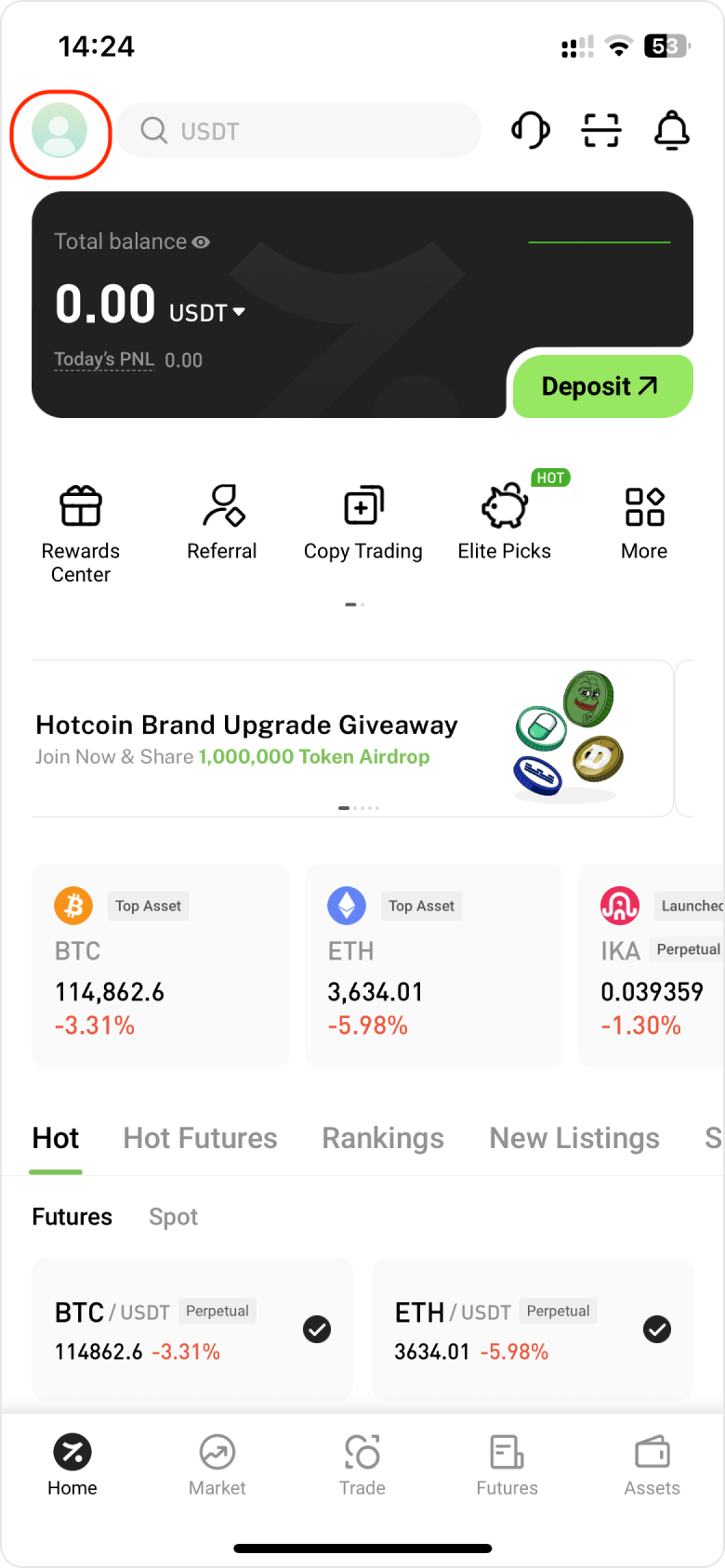
1.  Open the Hotcoin app and log in. Tap the avatar at the top-left corner of the Home screen.


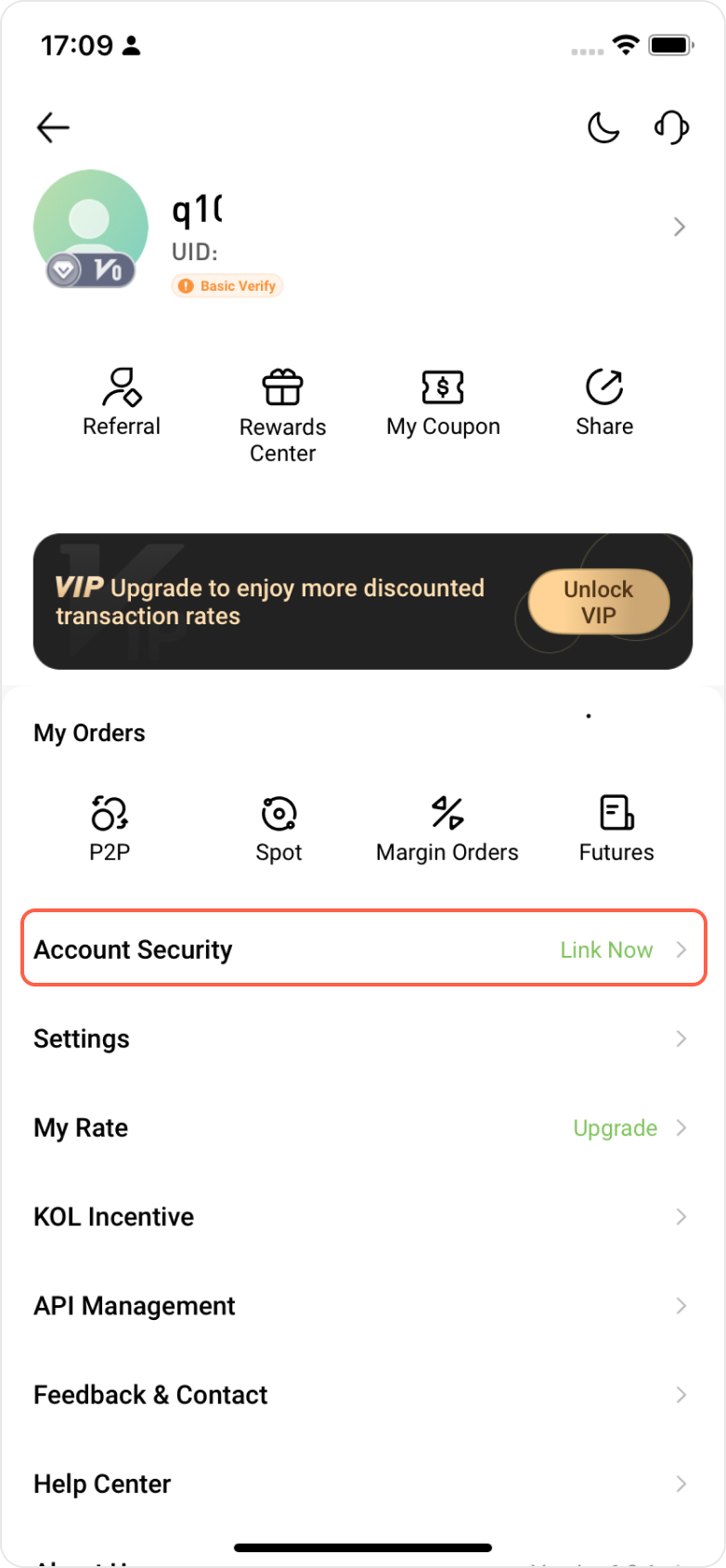
2.  Navigate to Personal Center, and choose Account Security.


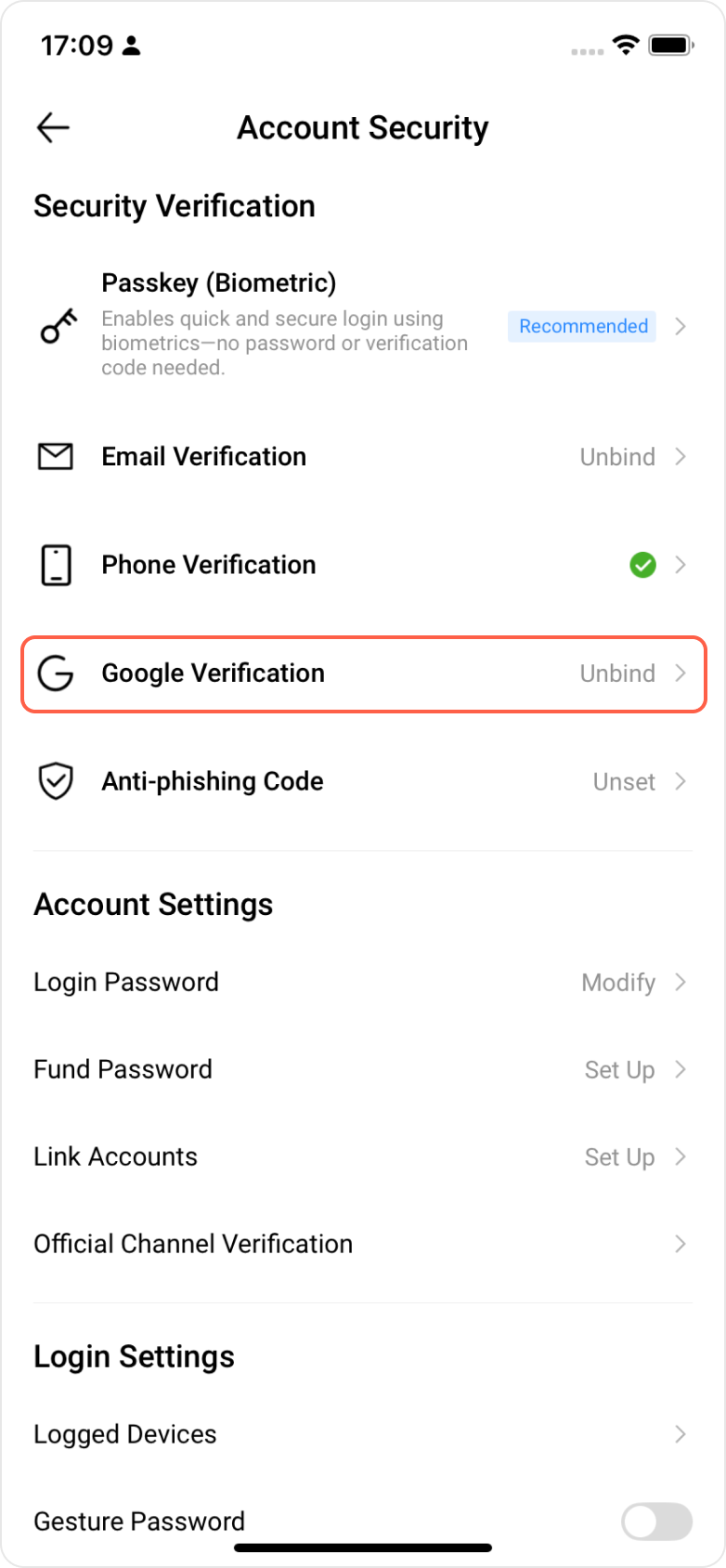
3.  Find the Google Verification option, and start setting up Google Authenticator.


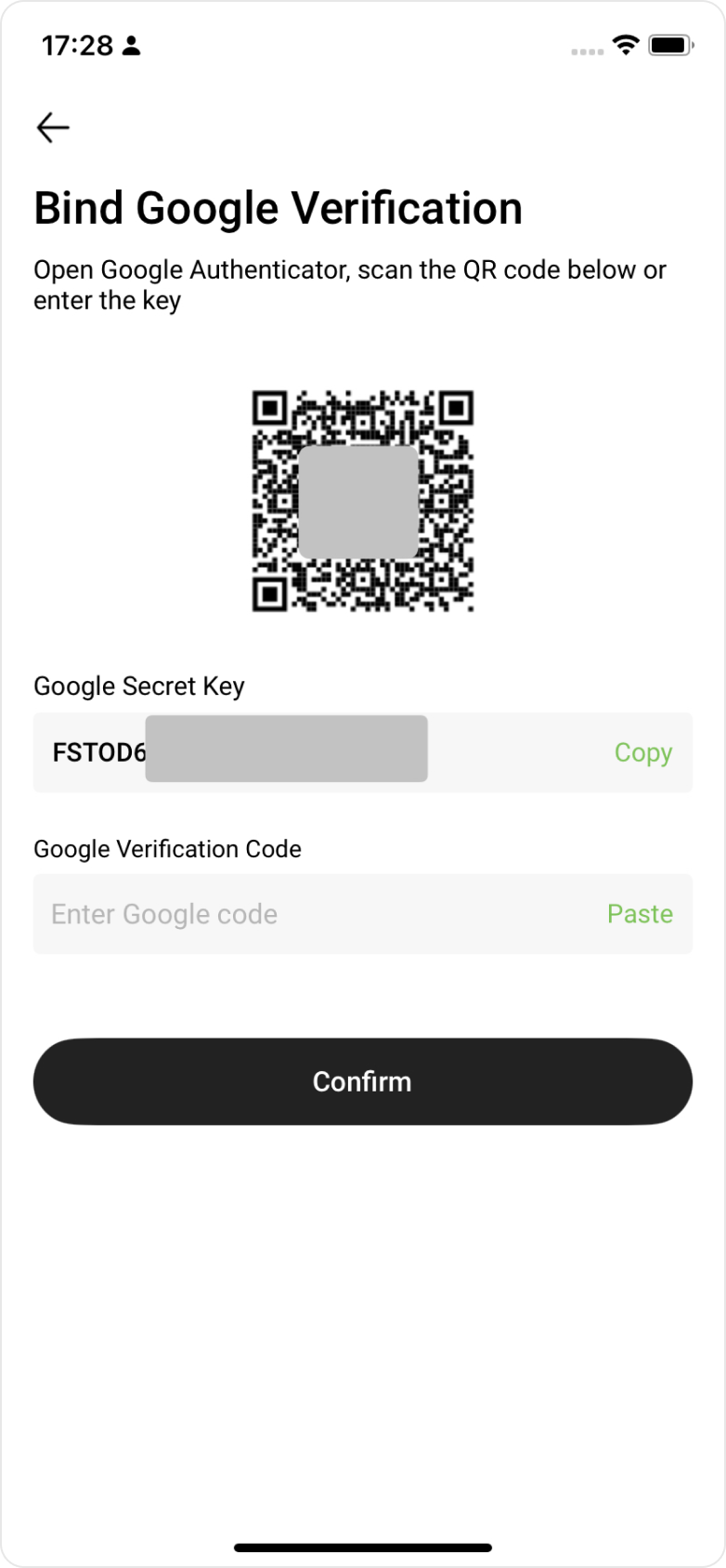
3.  On the Bind Google Verification page, you can obtain your Google key and QR code.


4.  Open the Google Authenticator app and either scan the QR code or manually enter the key to generate the corresponding Google verification code.


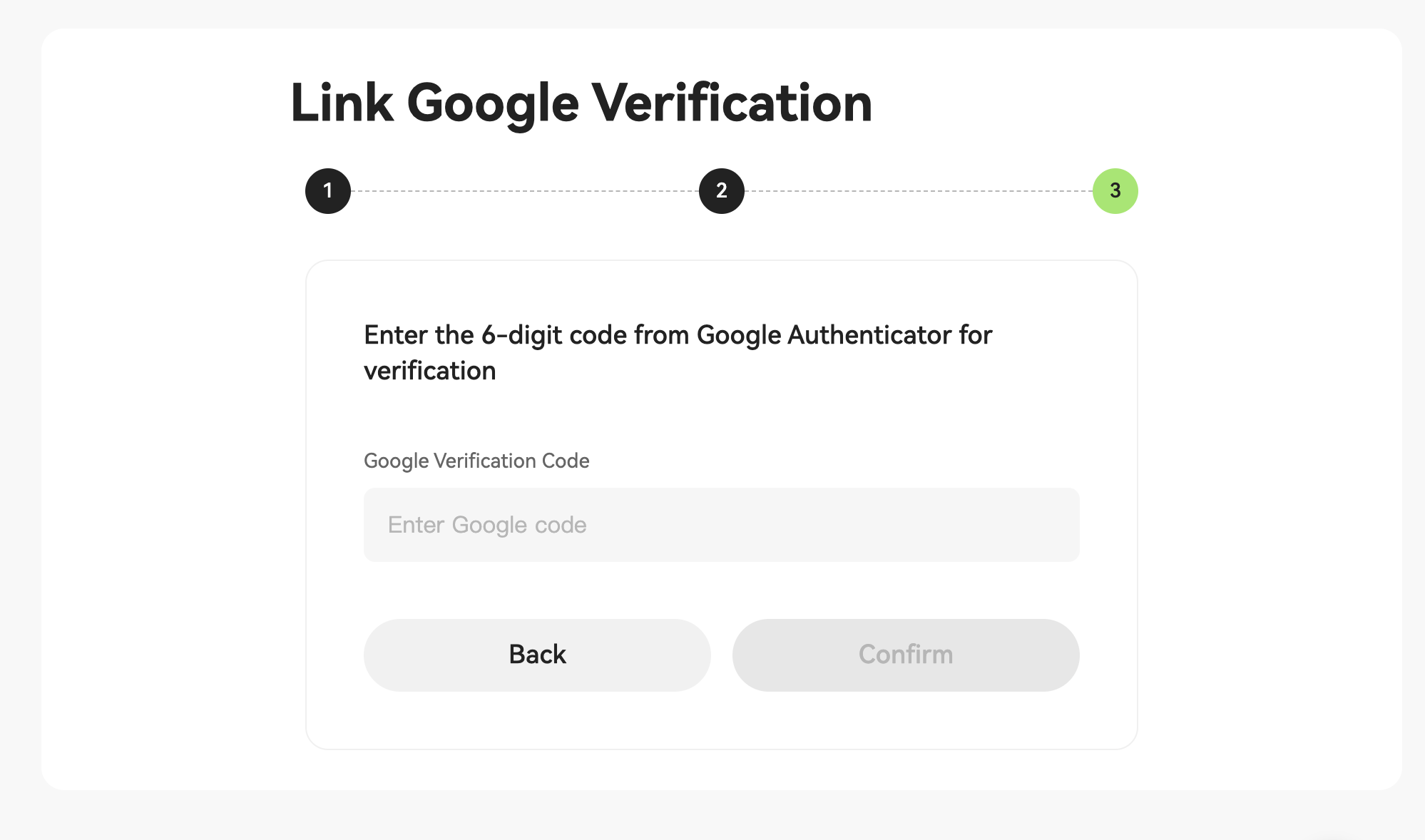
5.  Enter the code on the binding page and click Confirm to complete the binding.


Web — Entry to set up Google Authenticator


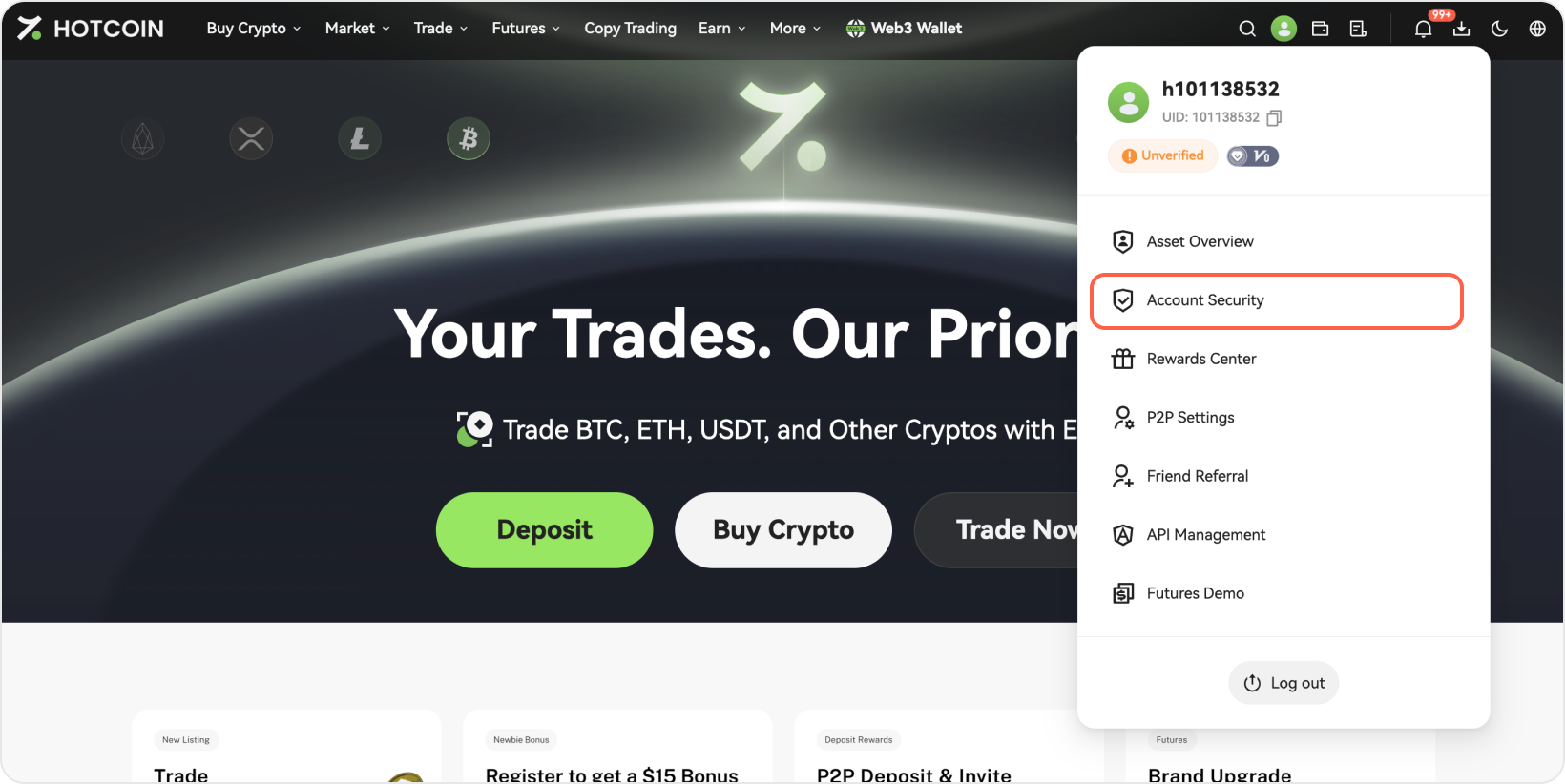
1.  Go to the Hotcoin official website, click the Log In button in the upper right corner, and log in with your username and password.


2.  Hover your mouse over your username, then click Account Security from the drop-down menu to enter your Hotcoin Security settings.


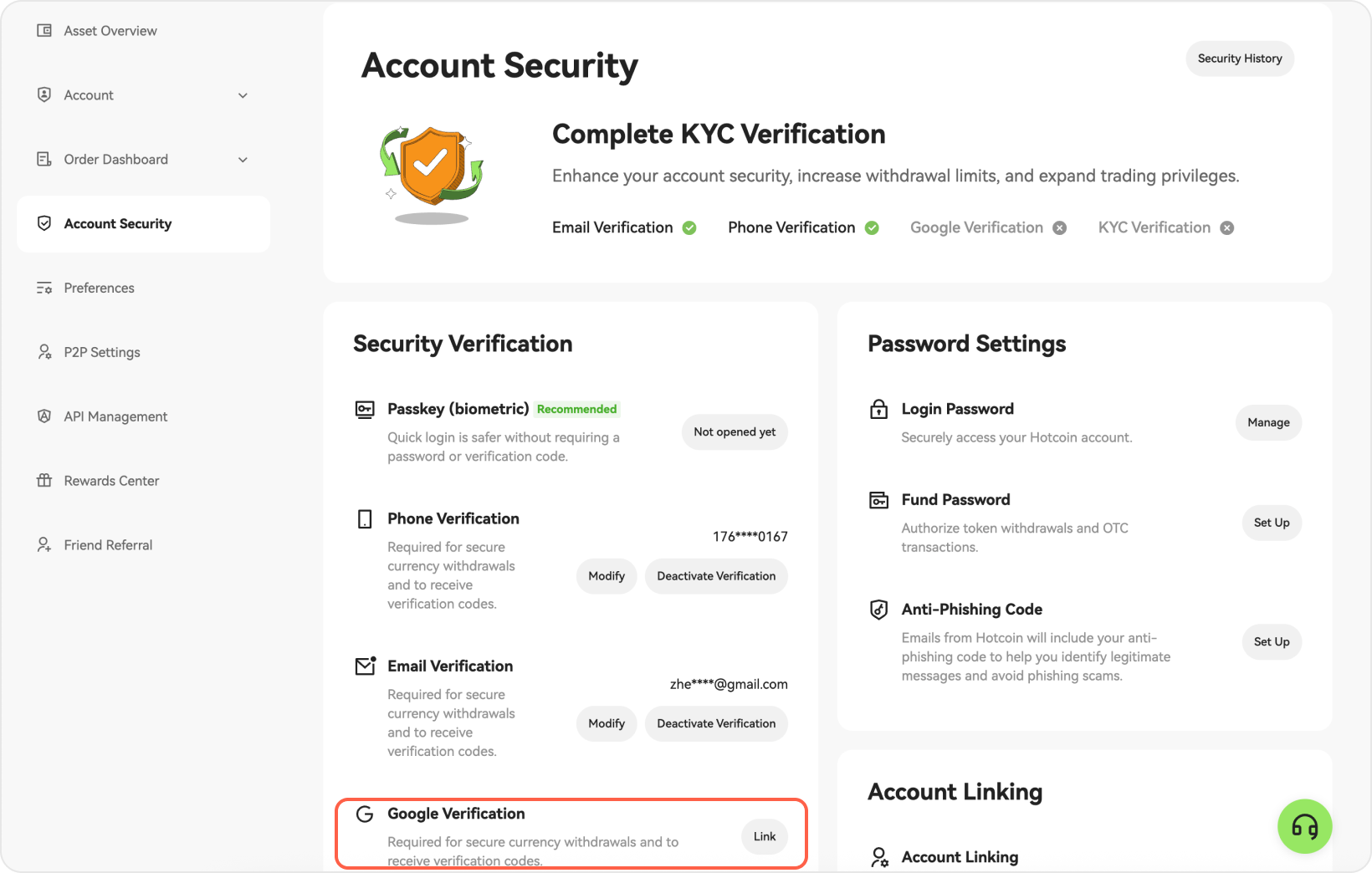
3.  On the Account Security page, locate Google Verification, then click Link to begin the setup.


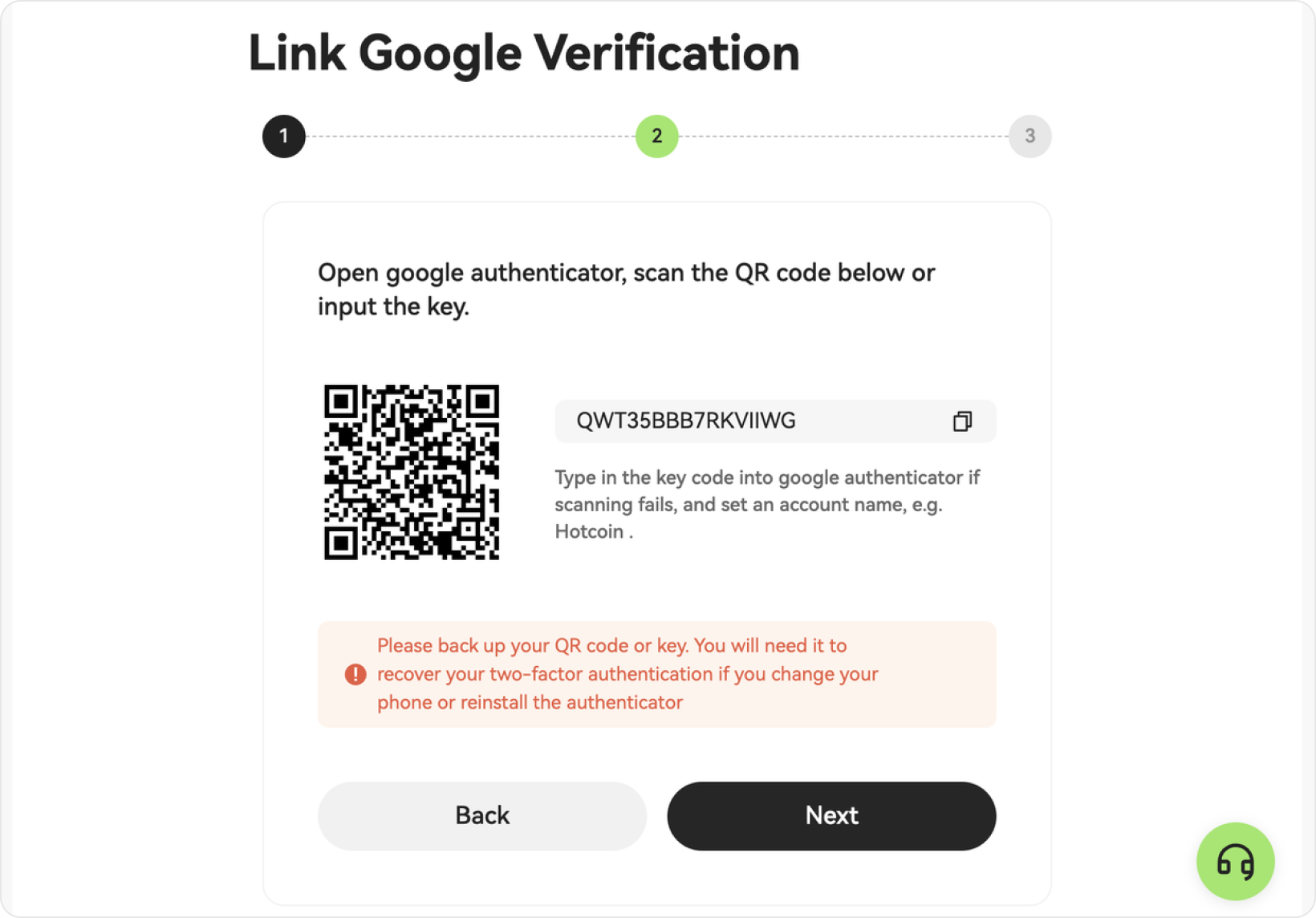
 4.  Obtain the Google key and QR code needed to bind Google Authenticator.


Download Google Authenticator & Complete Binding


1.  When you reach the verification page, download and install Google Authenticator from the App Store (iOS) or Google Play Store (Android), then open the app to access it.


  • For iOS: Go to the App Store and search for “Google Authenticator”
  • For Android: It is recommended to download Google Authenticator from the Google Play Store or get an authenticator app from other reliable sources.


2.  Once you open the Google Authenticator app, tap the button at the bottom of the screen, choose to either scan a QR code or manually enter the setup key.
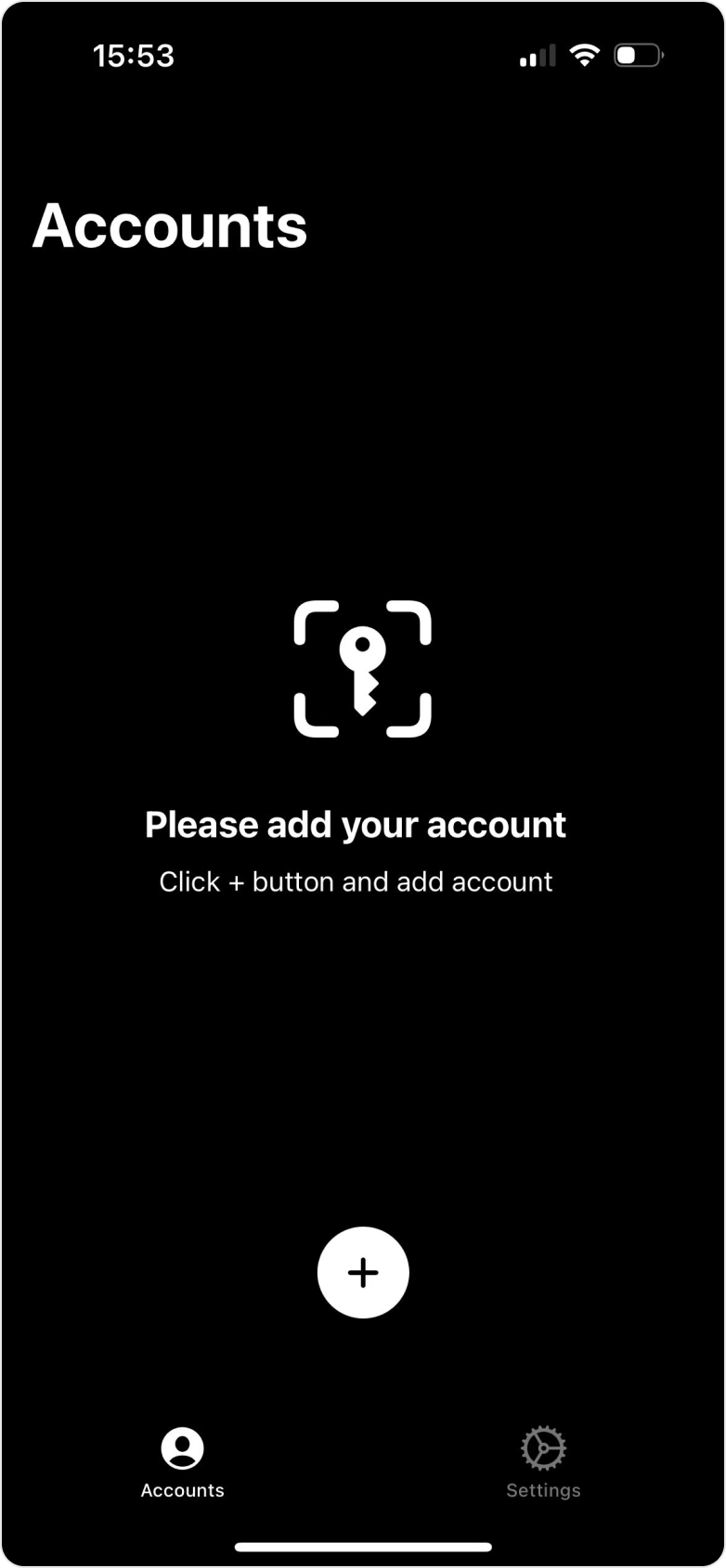
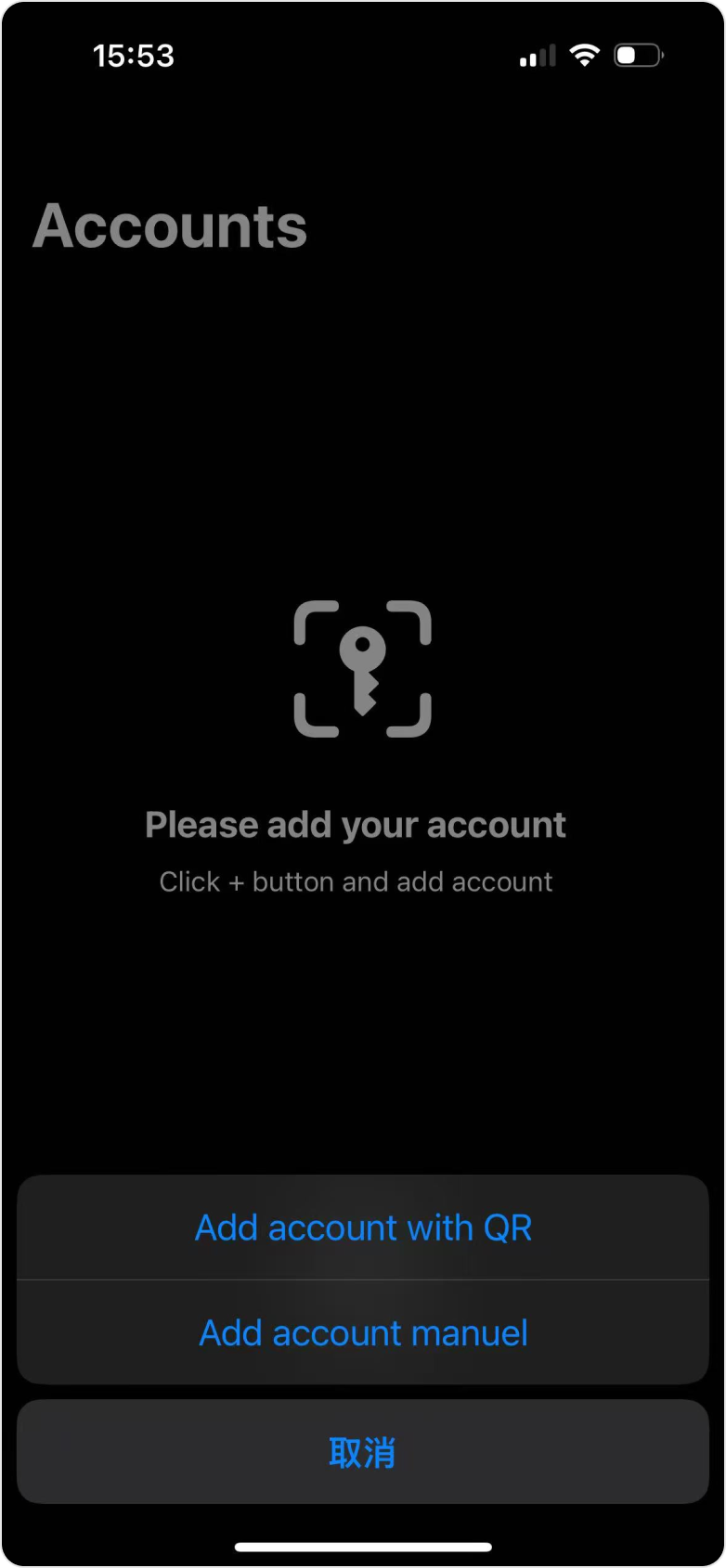


3.  Once bound, the app will generate a 6-digit verification code that refreshes every 30 seconds.


4.  For any security action on Hotcoin, enter the latest 6-digit code from the Authenticator app to verify. 


 ⚠️What should I do if I lose my phone and Google Authenticator access?  


We strongly recommend saving your key or QR code during Google Authenticator setup. If your phone is lost, you can restore the app on a new device using the backup.


If you haven’t backed up your key or QR code, contact customer support and provide the required information as instructed. Once your request is reviewed and approved, you can rebind Google Authenticator.

Quick Start Guide
Cryptocurrency Basics
Beginner’s Guide
App Guide
Start Trading
VIP Program
Rewards Center
Account Security & KYC
Asset Security
Security Settings
KYC Verification
Deposit & Withdrawal
Deposit
Withdrawal
P2P
P2P Trading Guide
P2P Merchant Management
P2P Rules & Agreements
Friend Referral
Spot Trading
Spot Trading Guide
Pre-market trading
Derivatives
Advanced Trading
Grid Trading
Trend Trading
Fundamentals of Technical Analysis (Candlesticks / MACD / RSI)
Prediction Market
Futures Grid
Futures Trading
Getting Started
Contract Type
Trading Mechanics
Risk Management
FAQ
Copy Trading
Getting Started
Follower Guide
Lead Trader Guide
Terms of Service
Web3 Wallet
Getting Started
Swap
Hotcoin Card
Hotcoin Earn
TradFi
Alpha
Startup
Platform Support
Agreements & Rules