HOTCOIN Logo
comprare monete
Citazioni
Trading
Futures
gestione finanziaria
Centro premi
Altro
Portafoglio Web3
E-mail del servizio clienti

Service@hotcoin.com

feedback sul prodotto

Product@hotcoin.com

cooperazione commerciale

Business@hotcoin.com

Casella di posta giudiziaria

Casecn@hotcoin.com

Contattaci
E-mail del servizio clienti

Service@hotcoin.com

feedback sul prodotto

Product@hotcoin.com

cooperazione commerciale

Business@hotcoin.com

Casella di posta giudiziaria

Casecn@hotcoin.com

chi siamo
Introduzione alla piattaforma
Centro annunci
Stato del sistema
Contratto d'uso
politica sulla riservatezza
Note legali
prodotto
negoziazione a contratto
commercio a pronti
Trading TradFi
Copia contratto
Trading con leva
Guadagnare denaro attraverso la gestione finanziaria
Acquisto di valuta P2P
Acquista criptovalute con carta
Portafoglio Web3
Servire
Streaming in diretta
Selezione rigorosa di monete calde
Centro Benessere
Invito degli amici
Vantaggi VIP
scaricamento
Richiedi un commerciante P2P
supporto
Accademia Hotcoin
Centro assistenza
Documentazione dell'API
Commissioni
Informazioni sulla valuta
Applicazione per l'elenco delle monete
Servizio clienti in linea
Feedback degli utenti
Verifica ufficiale
Trading
BTC USDC
ETH USDC
BTC USDT
ETH USDT
PI USDT
SOL USDT
XRP USDT
©2017-2026
Centro assistenza
/Quick Start Guide/Beginner’s Guide/
How to Change Your Login Password
Centro assistenza
/Quick Start Guide/Beginner’s Guide/
How to Change Your Login Password

How to Change Your Login Password

Hotcoin
Condividi l'app

  
Contents
Application: Standard Password Change (While Logged In)

Application: Forgot Your Password? Here’s How to Reset It

Web: Standard Password Change (While Logged In)

Web: Forgot Your Password? Here’s How to Reset It


Application: Standard Password Change (While Logged In)


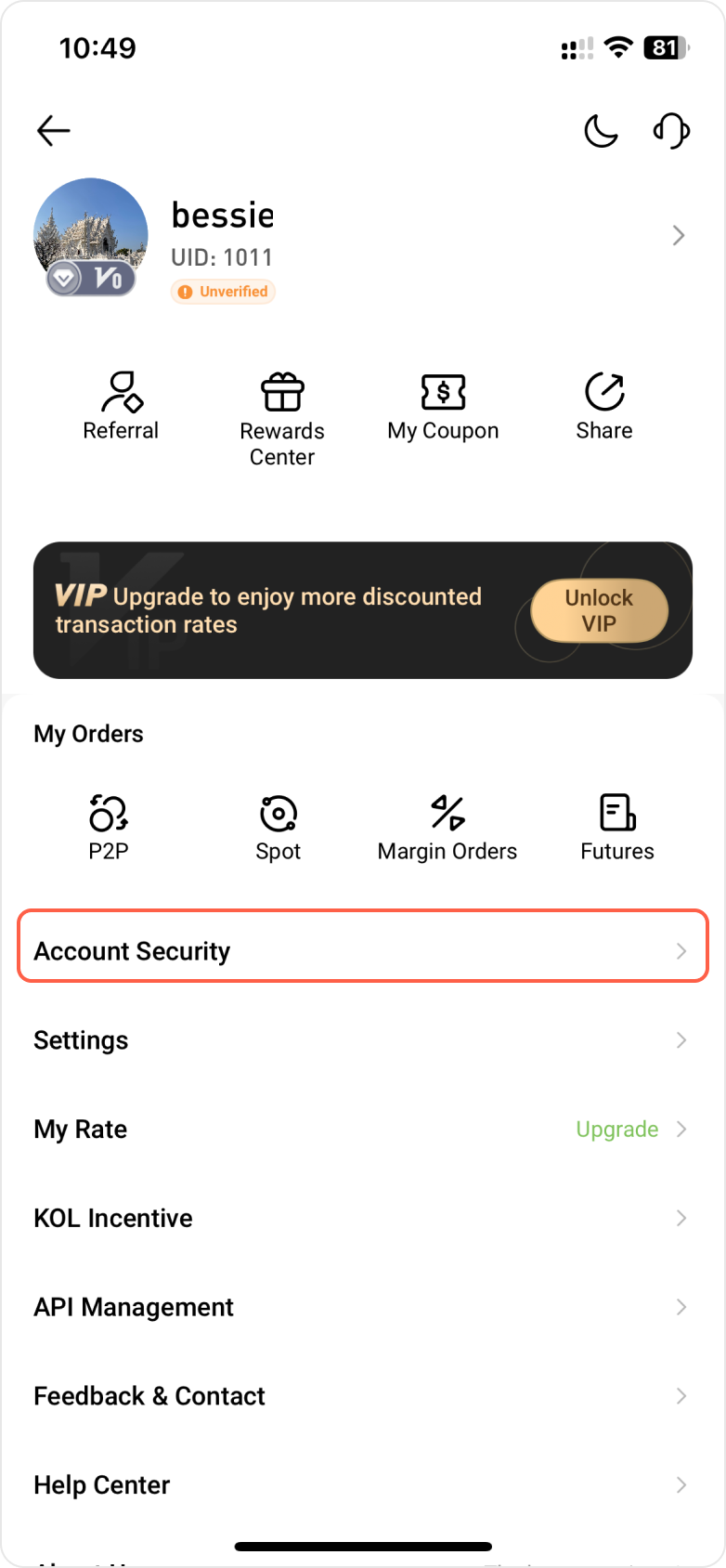
Step 1: Tap the profile icon in the top left corner of the Hotcoin app homepage, find and tap Account Security.


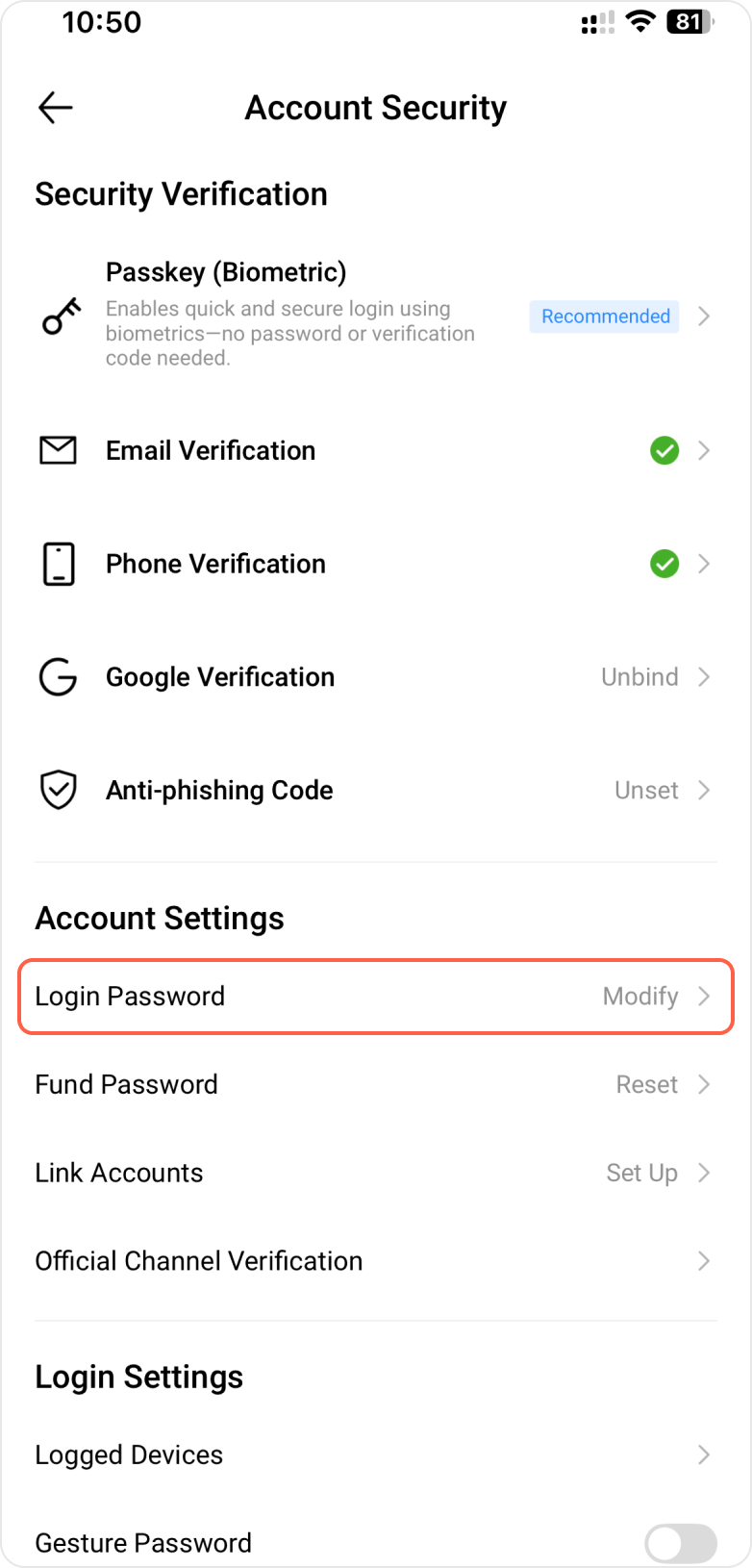
Step 2: Locate the Login Password option and select Modify.


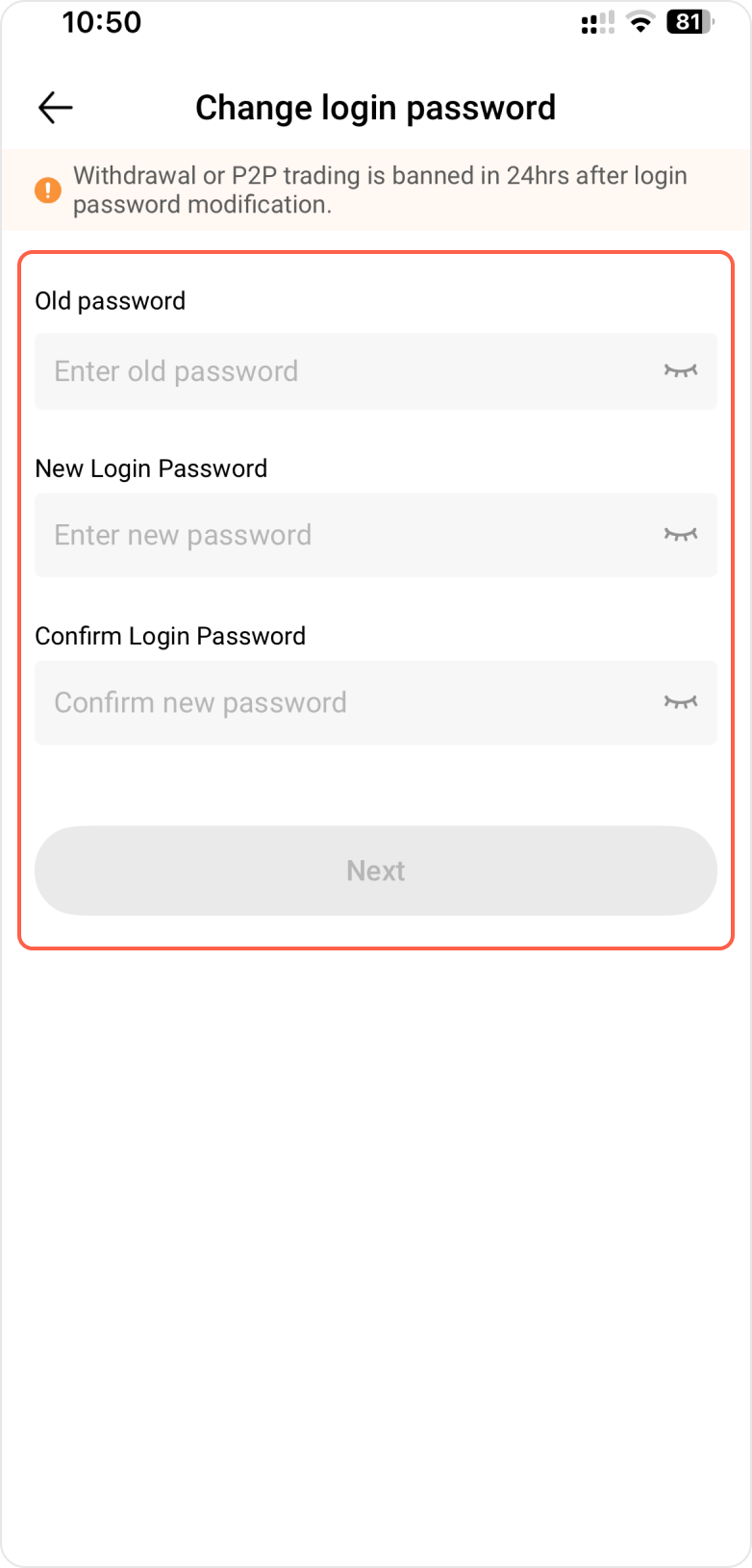
Step 3: Enter your current password, then set and confirm your new password. The new password must be entered twice and matched exactly. Tap Next to complete the password change.


Step 4: Enter the security verification code, then tap Confirm to complete the process.
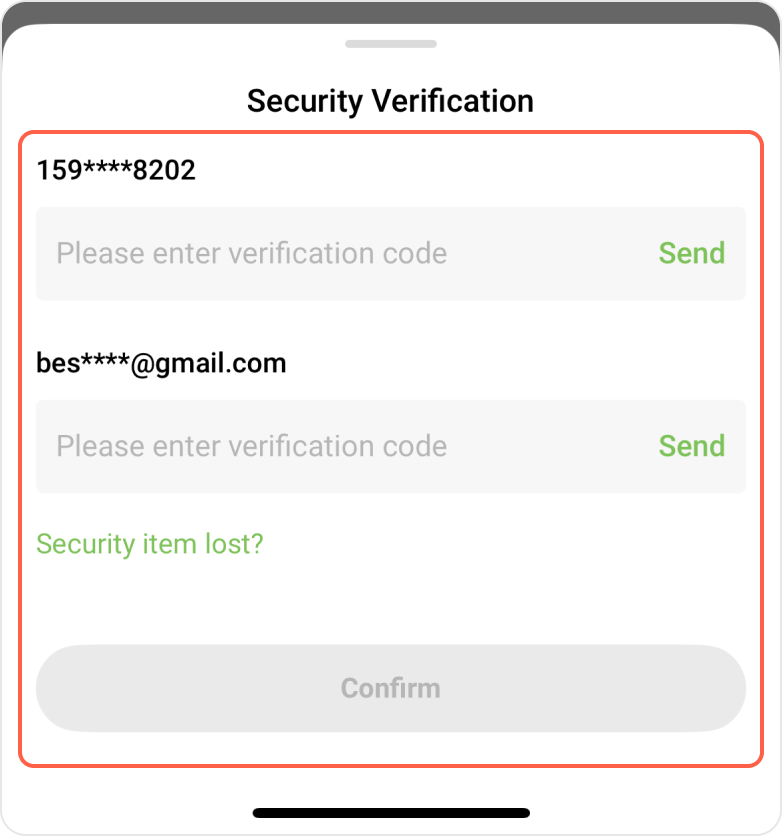


Step 5: After your password is successfully changed, the system will automatically log you out and redirect you to the login page. Please use your new password to log back into your account.


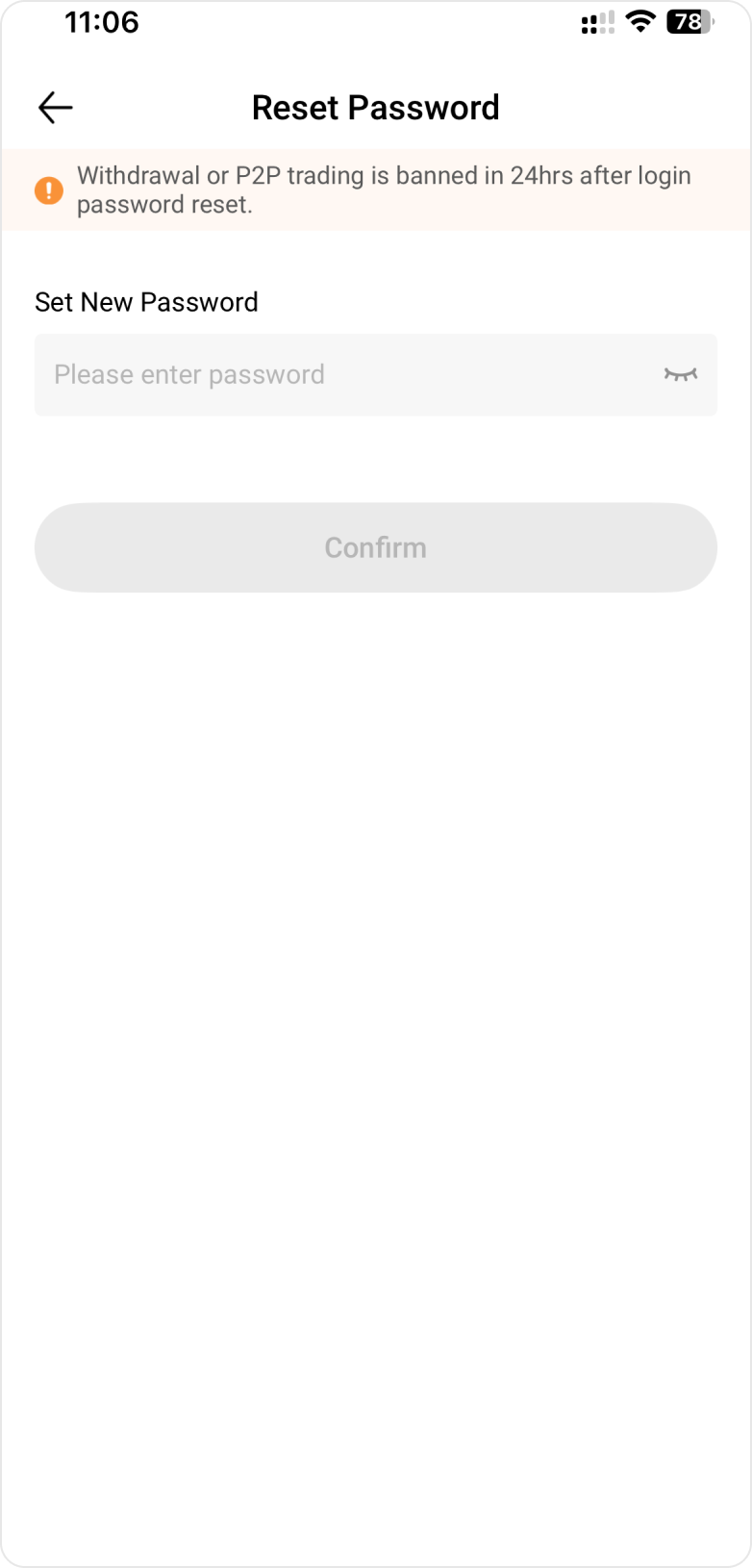
Application: Forgot Your Password? Here’s How to Reset It


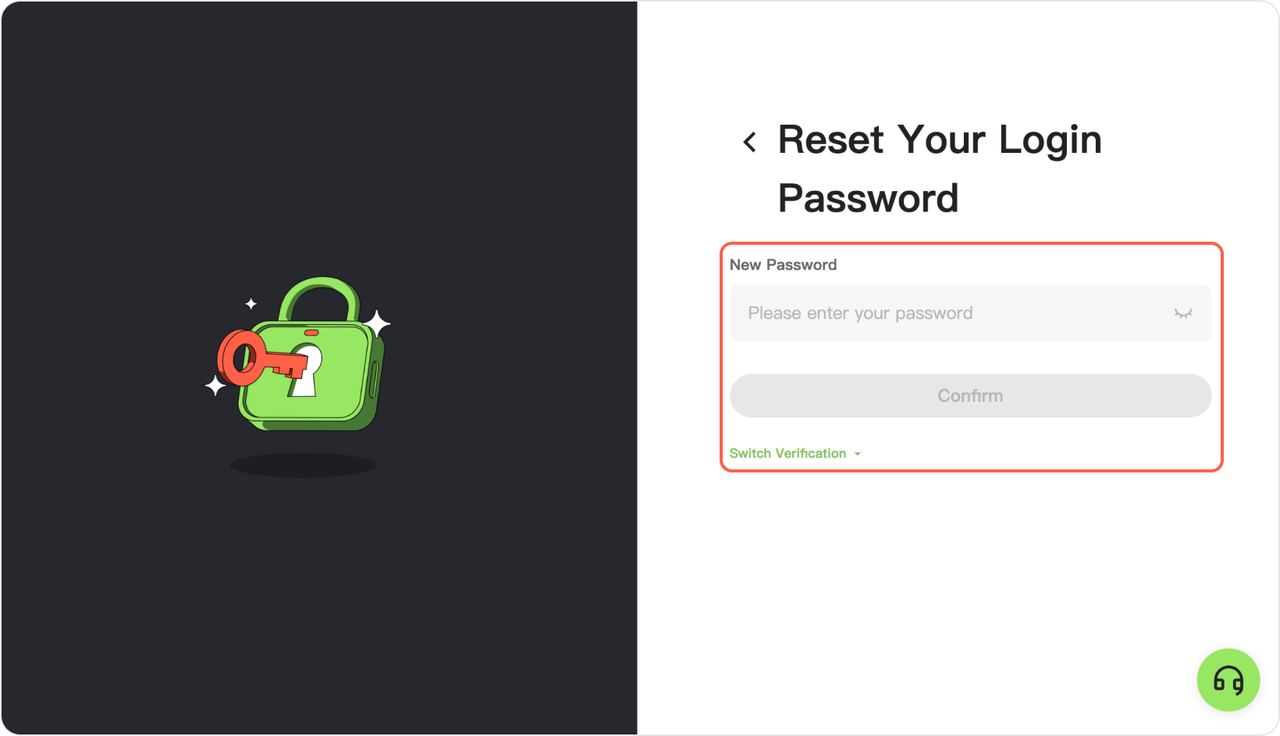
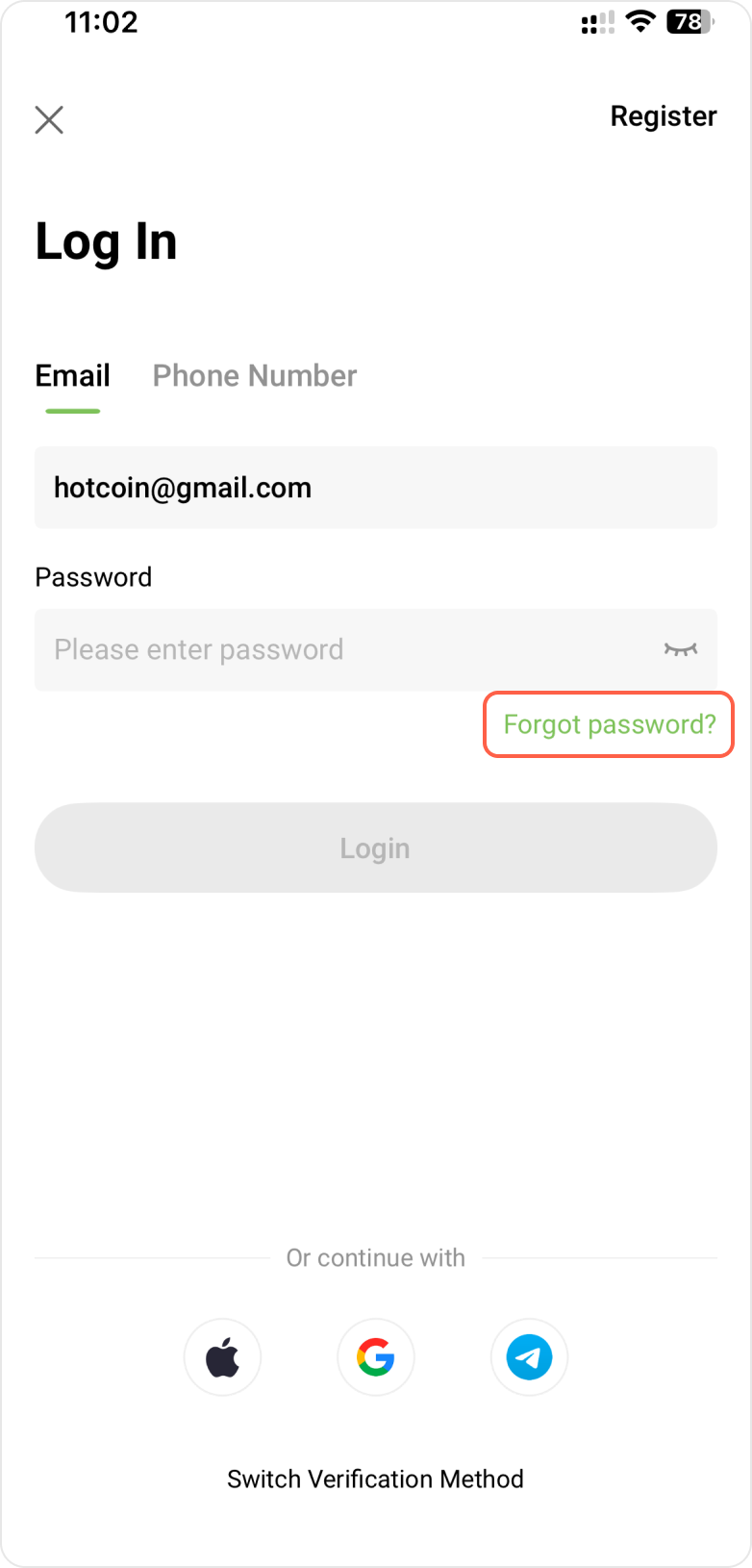
Step 1: Open the Hotcoin app and go to the login page. Enter your account and tap Next, then tap Forgot password below the password field.


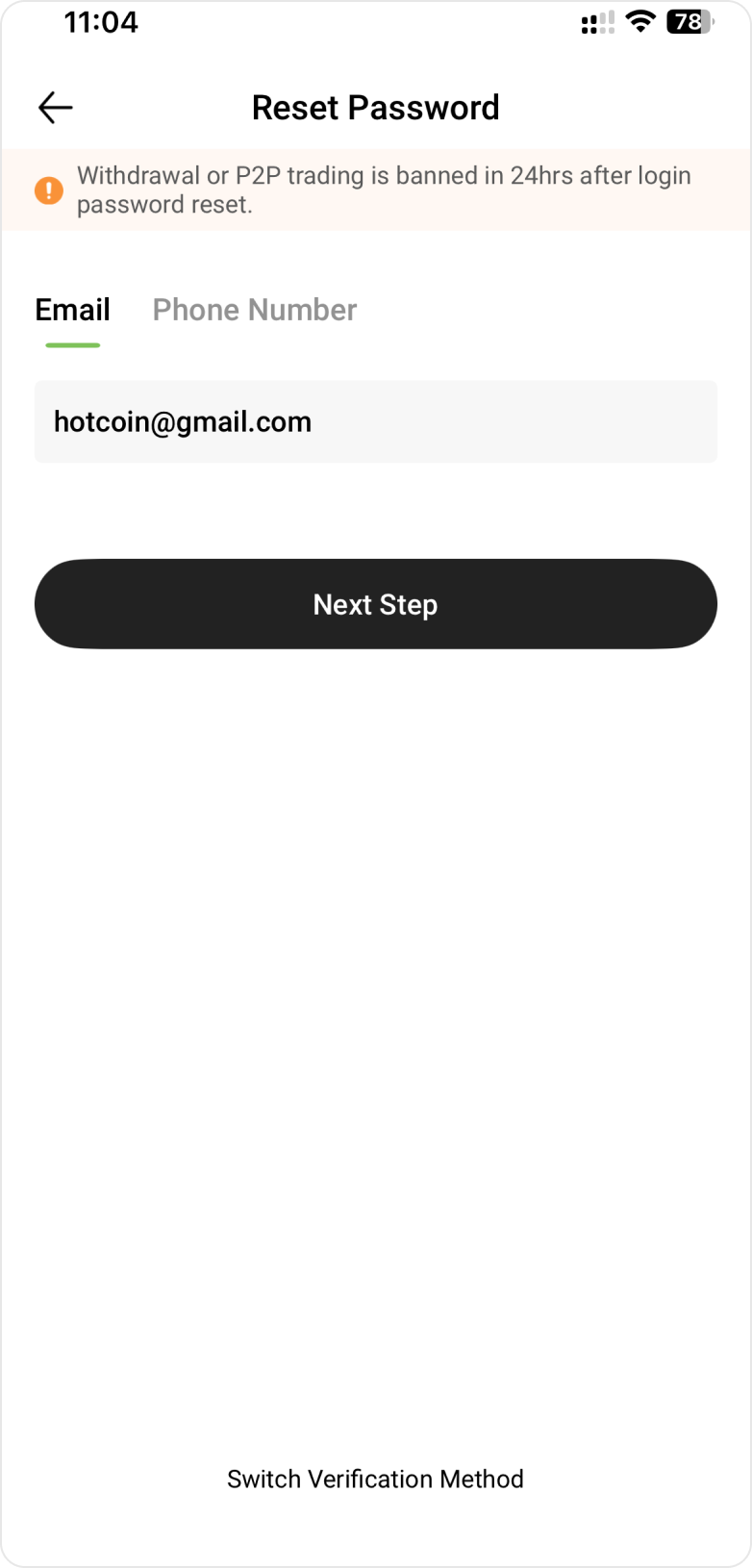
Step 2: Enter the account (email address or phone number) for which you need to reset the password, then tap Next Step to proceed with verification.


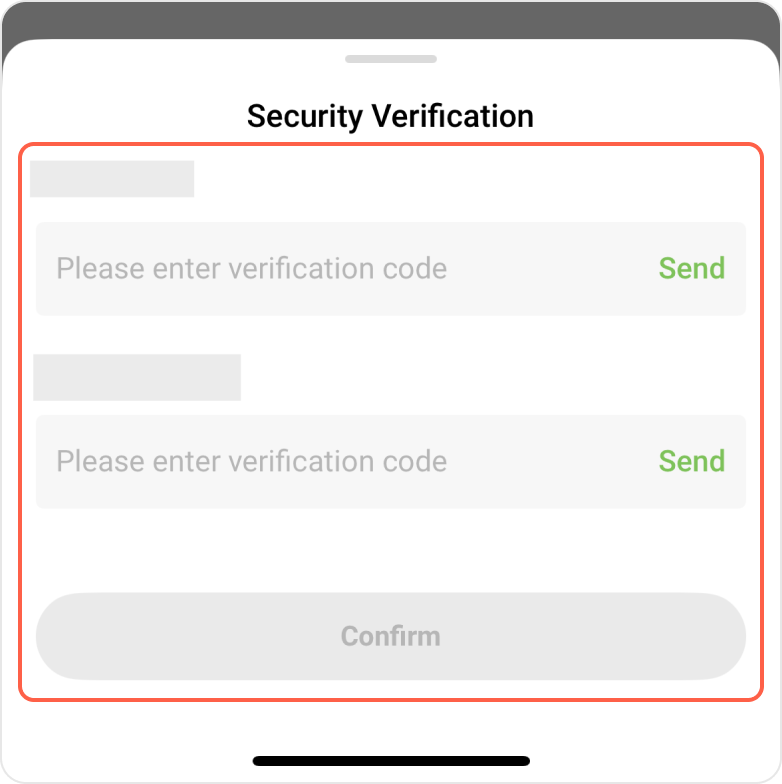
Step 3: Tap Send to receive your verification code. After entering the code you received, tap Confirm to complete the process.


Step 4: Set your new password and tap Confirm.


Web: Standard Password Change (While Logged In)


Step 1: While logged into your account, go to Account Security, navigate to the Password Settings section.
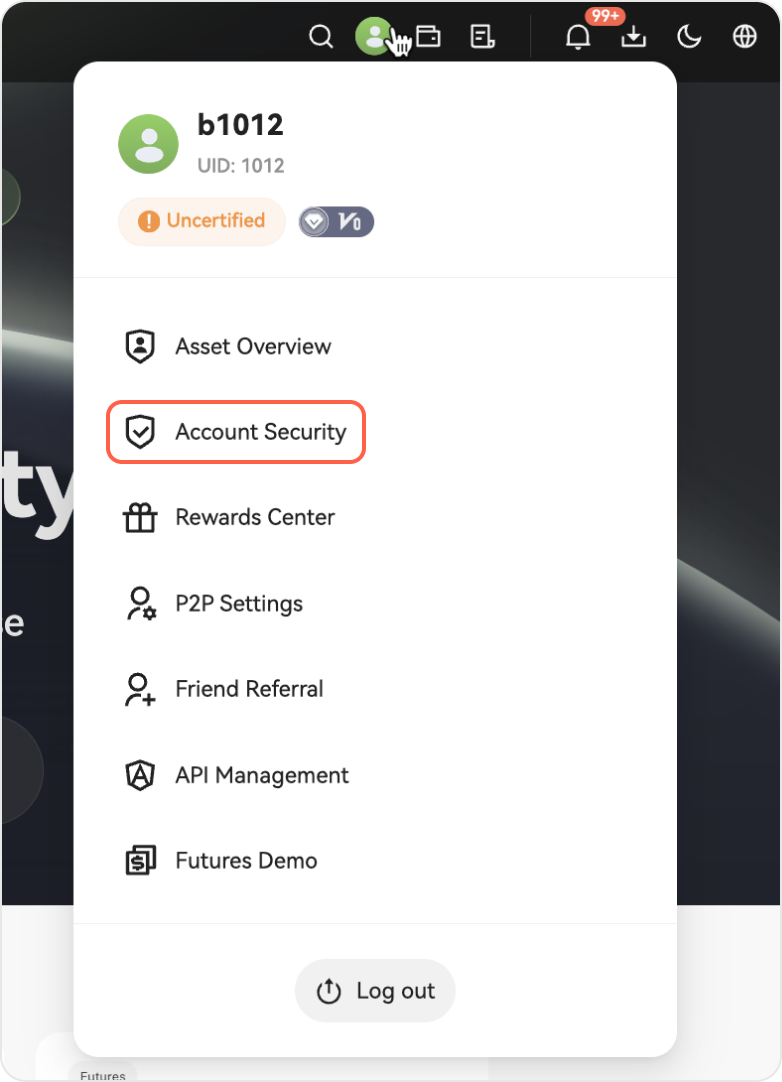


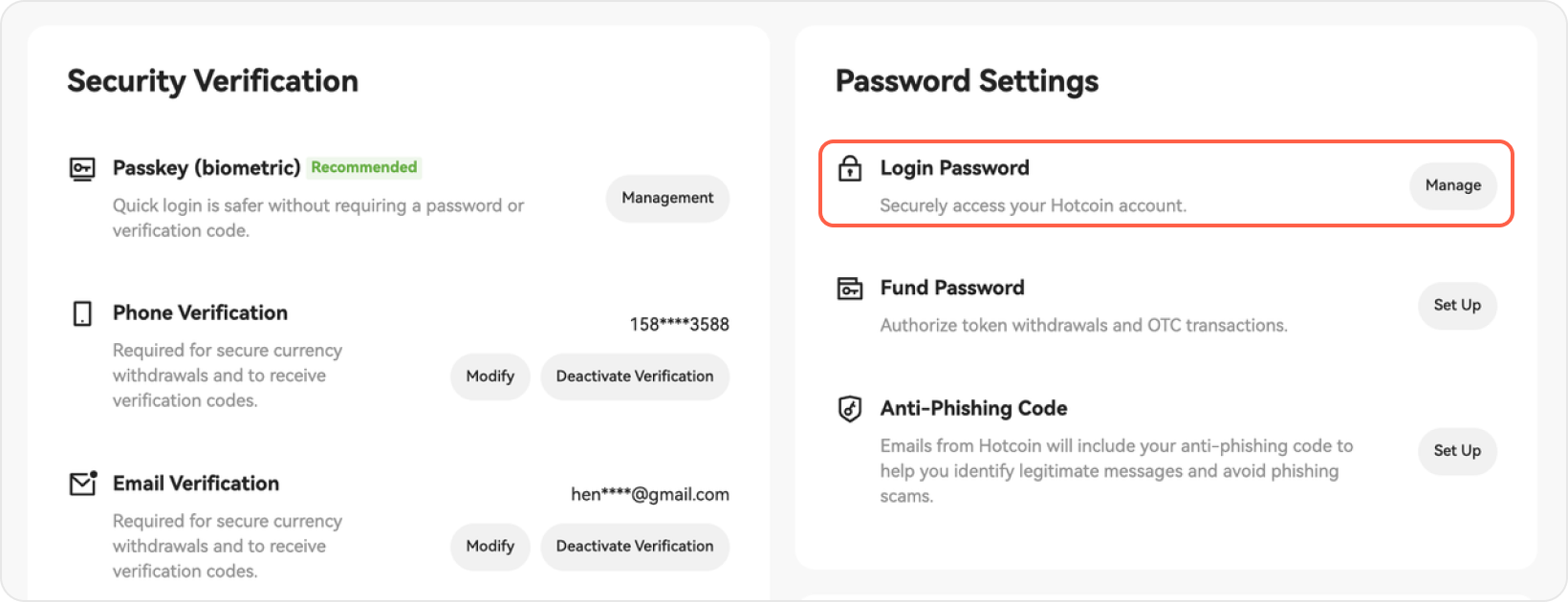
Step 2: Next to the Login Password option, click Manage on the right side.


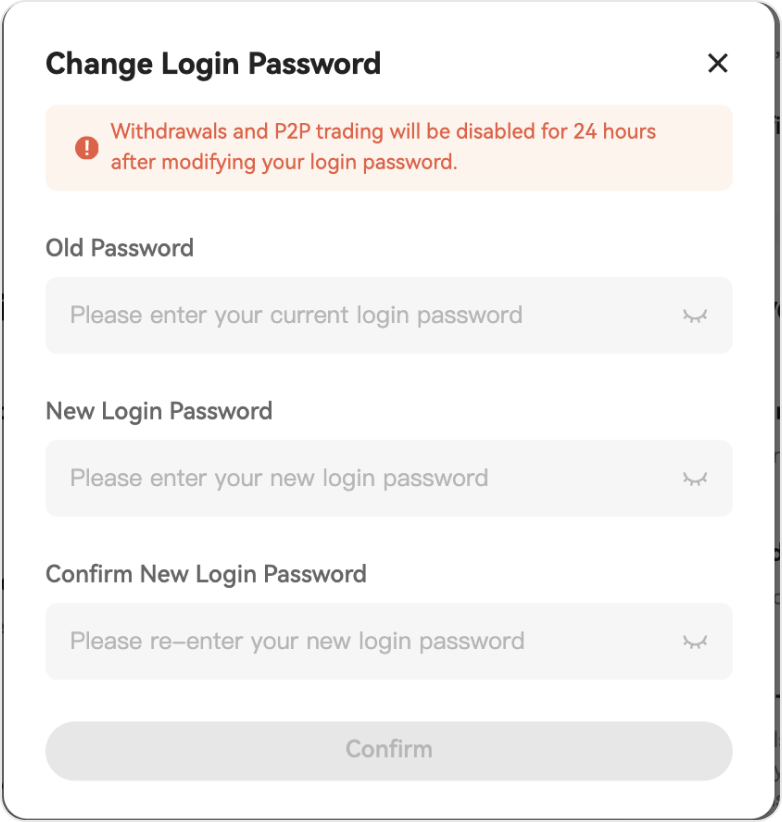
Step 3: Enter your original password, then set and confirm your new password. The new password must be entered twice and matched. Click Confirm to complete the password change.
  

 4750e3b0-a530-4e43-ac68-abb8009f3b0f.png 


Step 4: Enter the security verification code and click Confirm.
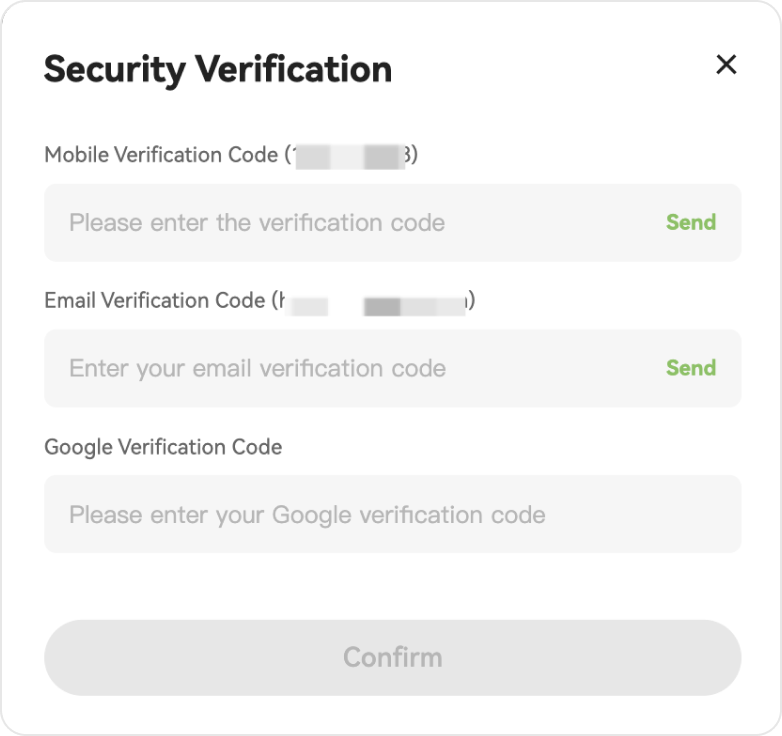


Step 5: Your password has been successfully changed. You’ll be logged out and redirected to the login page—log in again with your new password.


Web: Forgot Your Password? Here’s How to Reset It


Step 1: Visit the Hotcoin official website and click Log In in the top right corner, then click Forgot Password?
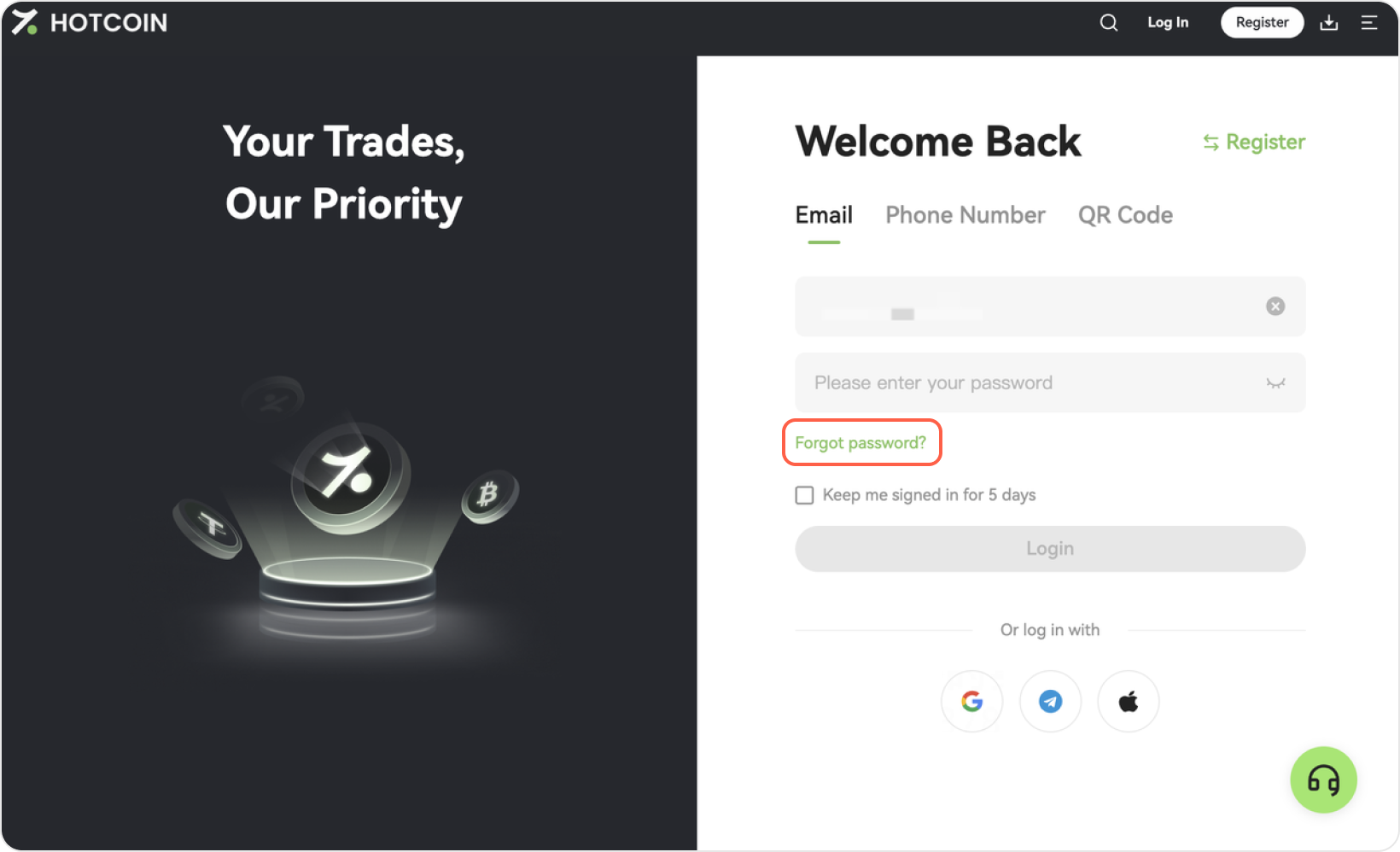


Step 2: Enter your account (email or phone number) for which you want to reset your password, then click Confirm to proceed with verification.
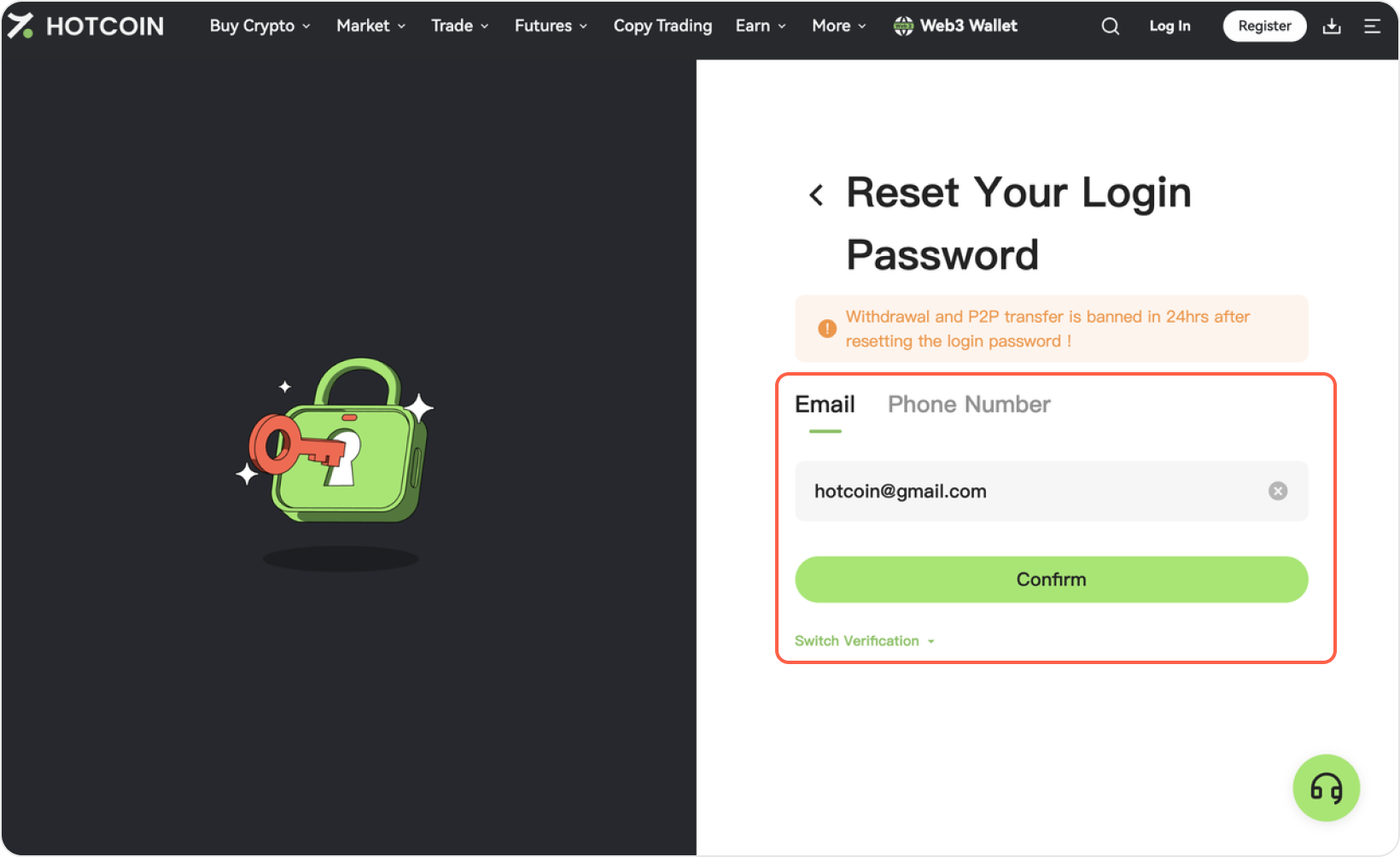


Step 3: Click Send to get your verification code via email. Enter your code, then click Confirm.
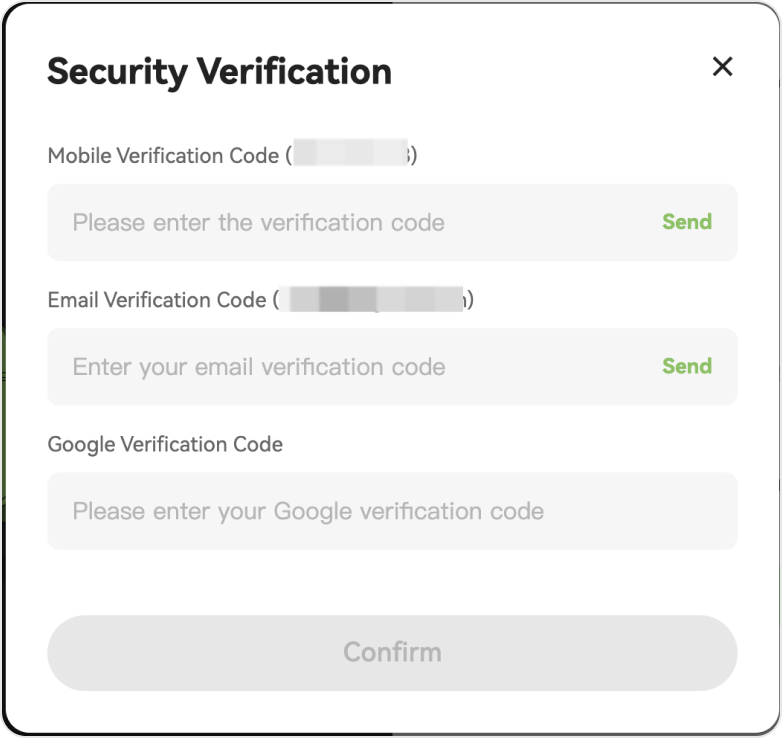


Step 4: Enter your new password and confirm it, then click Confirm.


f1ce1001-590c-4227-9a92-d82d83b0da92.png


Step 5: Your password has been successfully changed. A confirmation message will appear, and you’ll be logged out and redirected to the login page—log in again with your new password.

 

Quick Start Guide
Cryptocurrency Basics
Beginner’s Guide
App Guide
Start Trading
VIP Program
Rewards Center
Account Security & KYC
Asset Security
Security Settings
KYC Verification
Deposit & Withdrawal
Deposit
Withdrawal
P2P
P2P Trading Guide
P2P Merchant Management
P2P Rules & Agreements
Friend Referral
Spot Trading
Spot Trading Guide
Pre-market trading
Derivatives
Advanced Trading
Grid Trading
Trend Trading
Fundamentals of Technical Analysis (Candlesticks / MACD / RSI)
Prediction Market
Futures Grid
Futures Trading
Getting Started
Contract Type
Trading Mechanics
Risk Management
FAQ
Copy Trading
Getting Started
Follower Guide
Lead Trader Guide
Terms of Service
Web3 Wallet
Getting Started
Swap
Hotcoin Card
Hotcoin Earn
TradFi
Alpha
Startup
Platform Support
Agreements & Rules