
Complete Guide to 2FA: Setting Up Google Authenticator
Google Authenticator generates one-time verification codes from a shared secret and the current time. Once it is enabled, signing in or performing sensitive actions requires a second form of proof in addition to your password. However, these codes can still be stolen through phishing.
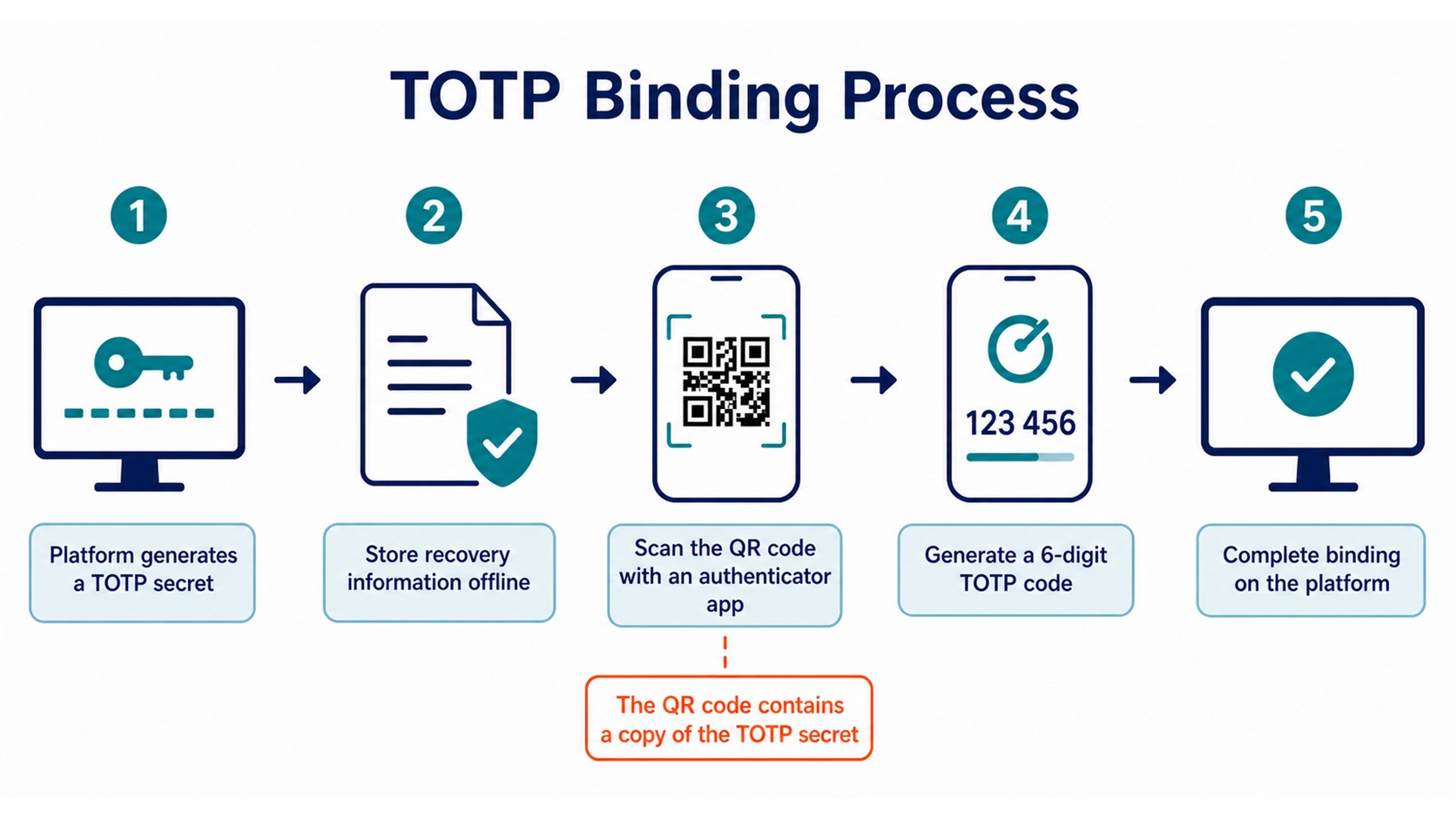
How Does TOTP 2FA Work?
During setup, the platform generates a shared secret and displays it as a QR code or text key. The authenticator app stores this secret and uses it to calculate a short verification code for each time interval. The platform calculates the expected result from the same secret and time, and authentication succeeds only when the two values match.
Codes normally refresh quickly, so the authenticator does not need to receive text messages and can generate codes while offline. The setup secret and recovery codes are the credentials that require strict protection. Anyone who copies the QR code or secret can generate the same verification codes.
TOTP is safer than relying on a password alone and reduces the risks associated with phone-number transfers compared with SMS. However, users must still enter the code into a website manually. A fake website can relay the password and code in real time, so TOTP is not phishing-resistant authentication.
How to Set Up Google Authenticator
In the current Hotcoin app, the option is located under Account Security in the personal center. On the website, find Google Authentication on the Account Security page after signing in. Interface labels may change, so begin from the official app or a website address you entered yourself.
- Install Google Authenticator from an official app store and verify the developer information.
- Select the option to bind Google Authentication on the Account Security page and complete the required identity checks.
- The platform will display a QR code and a text key. Save the recovery information using your offline backup plan before continuing, and do not upload screenshots to cloud storage.
- In the authenticator, select the option to scan a QR code or enter a setup key, then add the account.
- Enter the current verification code back on the platform and confirm the setup.
- Sign out and sign in again to confirm that the new authentication method works, and verify that your recovery codes are available.
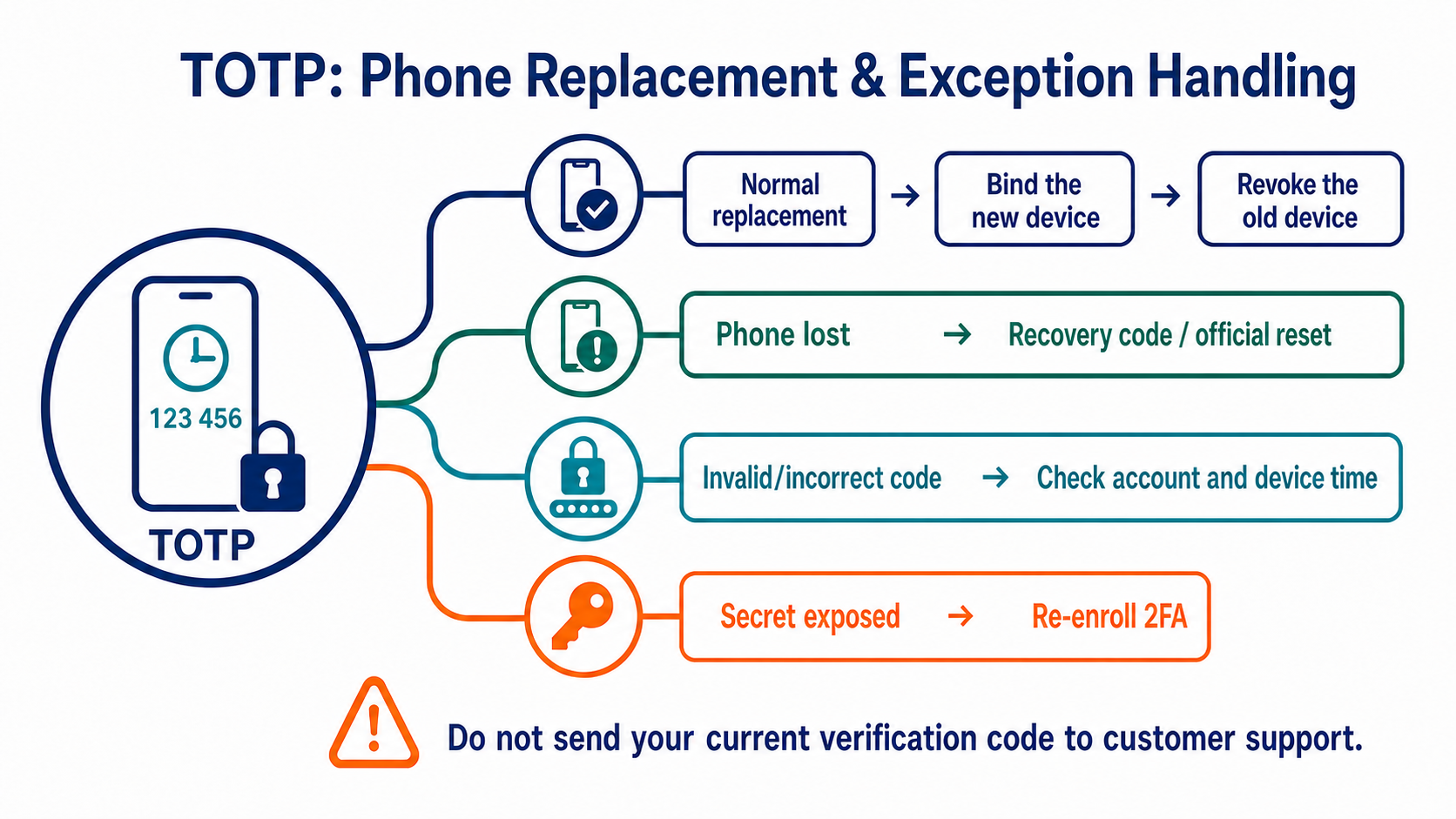
Do not send the setup QR code to customer support or open the setup page while sharing your screen. Legitimate support may help you follow an identity-review process, but it does not need your authenticator secret or current verification code.
What Should You Do When Switching Phones or Losing a Device?
For a planned phone change, confirm the migration method on the old device and the Account Security page first. After setting up the new device, revoke the old authenticator and then test both login and withdrawal verification. Do not rely only on the impression that the app has already synchronized.
If your phone is lost, first use a saved recovery code or the platform's official reset process. Access your account through a bookmark rather than a phone number or private-message link found through search. After the reset, review your password, email, devices, API keys, withdrawal addresses, and recent activity because losing a phone may expose other credentials as well.
How Can You Troubleshoot Incorrect Verification Codes?
First, make sure you selected the correct account entry. Wait for a new code and enter it immediately. Check that your phone's date, time, and time zone are synchronized automatically, and do not manually move the system clock forward or backward.
If repeated attempts still fail, stop entering codes and confirm that you are on the official page. A page that keeps requesting fresh codes without accepting them may be a phishing site collecting new codes. Continue only through an official reset process reached from an independent, trusted entry point.
For more guidance on layered account protection, return to Crypto Security Fundamentals.
Frequently Asked Questions
Can I Scan the Same Setup QR Code on Two Phones?
Both devices may technically generate the same codes, but doing so also creates another copy of the secret and expands the exposure surface. Decide whether you need a backup device based on the platform's rules and your physical storage plan.
Can Google Authenticator Generate Codes Without Internet Access?
Yes. TOTP relies on the secret stored locally and the device's time, so it does not require a network connection each time. However, the phone's clock must be accurate.
Is It Safe to Give a Verification Code to Customer Support During a Call?
No. A verification code proves that you authorized an action. Anyone who proactively asks for your current code may be trying to take over your account.
Do I Still Need to Protect My Email After Enabling 2FA?
Yes. Email may be used to approve a new device, receive reset notifications, and recover the account. If an attacker controls your email, they may still hide alerts or initiate a recovery process.
Inirerekumendang pagbabasa
Tingnan ang higit pa


Service@hotcoin.com
Product@hotcoin.com
Business@hotcoin.com
Casecn@hotcoin.com